Yelling Survival Guide
Household field manual · safety before comedy
The Yell-O-Meter is a deliberately theatrical way to explain a projected electricity bill. It is not a microphone, threat detector, medical device, or guarantee about what another person will do. The app measures the projected bill and real Home Assistant data; the yelling story is household folklore wrapped around those facts.
Immediate safety beats the bill. If anybody is threatened, hurt, prevented from leaving, or in immediate danger—or if there is a medical emergency—leave if you can and call 9-1-1. AC Defender’s
BROTHER MADbutton only changes thermostat behaviour. It does not contact help or make an unsafe situation safe.
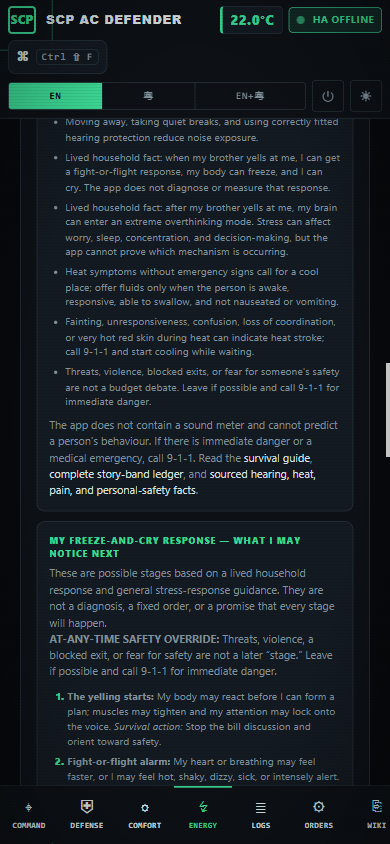
The capture above is from the real published application at 390 CSS pixels. The same content remains inside the page at 200% display-equivalent scale without root-page horizontal overflow.
Fifty-two survival moves
Before the bill arrives
- Check the projection date. A partial month and a complete month are not comparable.
- Check data freshness. Confirm whether the Energy page is using live Alectra data or the documented AC estimate fallback.
- Verify the rates. Review TOU rates, delivery charges, rebate, tax, and configured AC load.
- Compare like with like. Use the same billing window, weather conditions, and occupancy context before calling a change a saving or a loss.
- Share the forecast early. A calm preview is easier to discuss than a surprise invoice.
- Choose a calm time. Do not start a budget review while somebody is rushing, exhausted, overheated, or already angry.
- Prepare the receipts. Keep the runtime counters, usage calendar, TOU bands, and guard savings visible. Label estimates as estimates.
- Agree on the question. Decide whether the discussion is about comfort, cost, equipment, or who controls the thermostat. Those are different problems.
- Keep a clear exit. Nobody should be cornered or have a doorway blocked over a bill.
- Charge the phone. If a conflict has felt unsafe before, keep a working phone and a trusted contact available. A personal safety plan should fit the real household, not this app.
While voices are rising
- Lower your own volume. Short sentences and a slower pace reduce confusion; do not compete for the loudest line.
- Use one fact at a time. State the projected amount, its data source, and its timestamp.
- Do not defend a playful prediction as evidence. A forecast band is not proof of intent, volume, duration, or future behaviour.
- Take quiet distance. If people must shout to be heard nearby, move farther away or pause in a quiet place.
- Protect children and pets from the argument. Move them to a quieter safe space; do not use them to carry messages between adults.
- Do not touch electrical equipment in anger. Breakers and HVAC hardware require deliberate, safe handling based on real equipment evidence.
- Offer only reversible changes. If physically safe and genuinely agreed, try one bounded setpoint change and let the real telemetry show the result.
- Use a factual pause. Say what is known, what is estimated, and what needs checking later; then stop the live debate.
- Recognize my freeze response. Lived household fact: when my brother yells at me, I can get a fight-or-flight response, my body can freeze, and I can cry. Stop demanding an answer, allow safe distance, and, if it is safe, try simple grounding: feel the floor, take slow breaths without forcing them, name things you can see, or contact a trusted person.
- Stop demanding an immediate answer. A frozen body may make words difficult. Silence is not agreement, defiance, or permission to keep pressing.
- Use one rehearsed exit line. If words are available, try: “I am frozen. I need space. I will talk later.” The line does not need to explain or win the argument.
- Let text or a gesture carry the message. A pre-agreed hand signal or a short text can mean “I need space” when speaking feels unavailable.
- Ground through the senses if it is safe. Feel the floor or chair, name a few things you can see, or hold a familiar object. Stop any technique that makes the moment worse.
- Do not force the breath. Slower breathing may help some people when comfortable, but being unable to take a perfect deep breath is not a failure.
- Move toward a safer quiet place. If it is safe to move, choose somewhere with an unblocked exit and less noise; do not move somewhere that makes leaving harder.
- Contact the planned trusted person. Use the call, text, or code word chosen in a safety plan. Immediate danger still calls for 9-1-1.
- Keep essentials reachable. If conflict has felt unsafe before, keep a charged phone, keys, necessary medication, and shoes where they can be reached without crossing the argument.
- Do not turn crying into evidence. Crying does not prove agreement, guilt, manipulation, or readiness to continue. Pause and allow space.
- Wait before making bill decisions. Do not agree to thermostat, money, or account changes while frozen or overwhelmed. Revisit them after safety and calm return.
- Do not block an exit or follow someone demanding space. A cooling-cost argument never outranks personal safety.
- Leave when it feels unsafe. Threats, violence, fear, or a blocked exit are not a budgeting technique. Call 9-1-1 for immediate danger or a medical emergency.
After the noise stops
- Recover somewhere quiet. Distance and a quiet break reduce additional noise exposure.
- Notice hearing warnings. Ringing, muffled or dull sound, ear fullness, or sound that causes pain deserves attention; arrange a hearing check if symptoms persist or concern you.
- Notice heat warnings. For heat symptoms without emergency signs, move to a cool place and offer fluids only when the person is awake, responsive, able to swallow, and not nauseated or vomiting. Fainting, unresponsiveness, confusion, loss of coordination, or very hot red skin can signal heat stroke; call 9-1-1 and cool the person while waiting.
- Write down the actual outcome. Record the bill value, input freshness, setpoint change, and what really happened. Do not promote a joke into a fact by repetition.
- Separate people from device events. A vendor schedule, automation, or delayed Home Assistant echo is not automatically a person’s decision.
- Review the audit log. Use real context metadata before assigning a thermostat change to a wall touch, phone user, automation, or the defender.
- Review comfort. A cheaper month is not a success if someone was pushed into unsafe heat.
- Agree on control ownership. Decide who may use the wall unit, Home Assistant, vendor app, and AC Defender controls before the next expensive day.
- Tune the budget transparently. Explain the target, maximum offset, safety maximum, and data basis. Never hide a comfort change behind a joke.
- Make a real safety plan when needed. A trusted person or local support service can help build a plan for leaving quickly or staying safely; the app cannot do that work.
- Name the overthinking loop. Try: “My brain is replaying this because I feel unsafe or uncertain; replaying is not the same as solving.” Naming the loop can create a little distance.
- Write the worries down once—only if private. Writing worries once may help clear mental space, but use paper, a device, or an account only when it is safe and genuinely private. If a household member may monitor the device/account or find the note, do not record it.
- Split facts from what-ifs. Make two columns: what is known now, and what the mind fears might happen. A possibility is not evidence.
- Pick one safe next action. Choose one action possible now—move to safety, text the trusted person, or defer the bill—not ten imaginary future arguments.
- Schedule bounded worry time. If the loop keeps returning, set aside 10–15 minutes later to review the list, then redirect to the present. This is an option, not an order to suppress thoughts.
- Separate solvable problems from hypothetical worries. If an action exists, schedule it. If no action exists now, label the thought as a hypothetical worry rather than solving it forever.
- Catch, check, and reframe. Ask what evidence supports the thought, what evidence does not, and what neutral wording is more accurate than “this will definitely happen.”
- Limit repeated checking. Re-reading the bill, messages, or audit log repeatedly may keep attention on the alarm. Check once for a defined purpose, record the answer, and pause.
- Protect the next sleep period. Write down the next action before bed, reduce stimulating bill review, and use a quiet routine; lost sleep can make worry and concentration harder.
- Use one trusted reality check. Ask one safe person to help separate an immediate fact from a feared scenario. The goal is clarity and support, not a vote on whether the reaction is valid.
- Use non-emergency professional support when needed. If freezing, crying, overthinking, watchfulness, or renewed alarm becomes frequent, worsens, feels highly distressing, or disrupts sleep, school, work, relationships, or daily life, a healthcare or mental-health professional can discuss support without AC Defender assigning a diagnosis.
What each app action really does
| Action | What it can do | What it cannot do |
|---|---|---|
| Monthly budget | Apply a bounded effective-target offset while inside the comfort safety band | Guarantee a bill total or override hot-room safety |
| Field Kitchen / siesta | Park or pause cooling for a chosen interval and record the resulting energy ration | Pretend cooling stopped when Home Assistant says it did not |
BROTHER MAD |
Ease the real setpoint when appropriate and stand corrections down for two hours | Detect violence, call help, or guarantee that yelling stops |
| Emergency quiet | Pause corrections while the worker continues real Home Assistant refreshes | Create fake thermostat state or silence a real comfort emergency |
| Yell-O-Meter | Place the current projected bill into a playful story band | Measure sound, pain, anger, intent, danger, or another person’s future behaviour |
The safe thermostat boundary
- Never switch a breaker or service HVAC equipment because a comedic forecast suggested it.
- A real Home Assistant command must succeed or return its real error.
- Hot-room comfort bypasses budget and stealth holds according to the documented guard order.
BROTHER MADis a reversible two-hour defender stand-down. It is not a personal-safety control.- The cooling-failure guard requires real OMEGA room-rise evidence before an automatic OFF.
- A person manually restoring the AC during a confirmed failure remains in charge for that episode.
Configuration
There is no separate “yelling” sensor or aggression threshold. The story band reads
ProjectedMonthEndCad from the existing electricity-budget snapshot. Configure the real inputs
under Settings → Electricity budget and in the documented electricity-cost settings. The
automatic BROTHER MAD response is a deterministic large-raise/touch-burst rule. Separately, the
thermostat-interaction learning model uses real touch patterns and user-labelled upset moments to
extend later manual-change grace during sensitive hours. Neither path listens to speech or proves
that somebody will yell.
Failure modes
- Stale or missing Alectra data: the budget identifies the AC-estimate fallback or reports that the required input is unavailable. It does not invent a whole-house reading.
- Bad configuration: an incorrect rate, fixed charge, or assumed AC load can make a projected bill wrong even when the arithmetic is working.
- Noisy conflict: the app cannot determine whether a voice is loud, painful, abusive, or safe.
- Home Assistant offline: the wiki remains available, but device claims must remain unavailable until real state returns.
- Medical or personal danger: stop using the app as the decision surface and seek appropriate urgent help.
Security and privacy
The static wiki does not collect search text or load third-party assets. The live app should not store private conflict details in public issue reports or exports. Review entity names, timestamps, household routines, and narrative notes before sharing an Energy or audit export.
Verification
- Open Energy with a real or explicit fallback projection and verify the displayed band.
- Confirm the accessible meter value names the bill, band, and qualitative label without claiming an unmeasured decibel value.
- Open
/wiki/Yelling-Survival-Guideand search forexit,hearing, andBROTHER MAD. - Verify keyboard access, visible focus, reduced motion, and no horizontal overflow at 390 CSS px.
- Confirm Home Assistant remains real/offline rather than replaced with simulated thermostat data.
Suggested articles
- Yelling predictions — every bill band and possible consequence.
- Heat, pain & survival facts — sourced hearing, heat, and personal-safety facts.
- Energy & Costs — the real projection and TOU mathematics.
- Emergency Protocols — what each thermostat stand-down actually changes.