Settings
The MudBlazor settings page controls defender behavior without editing configuration files. Each input, button, and action label includes short helper text below it. Times are displayed with a 24-hour clock.
Settings repository history
The linked Settings repository surface keeps every real settings snapshot in a local append-only
Git journal. Its history list supports derived action counts (created, updated, restored, and
undone), typed UTC date ranges with Today/7-day/30-day/90-day/This-month presets, and the adjacent
full regex builder. Date, action, and text filters compose, and the currently filtered rows can be
downloaded as UTF-8 JSON or Markdown without sending settings or credentials to the server. See the
detailed Settings history filters and exports article for failure,
security, and verification details.
Appearance editor
The Appearance card is a presentation-only editor for the website shell. It persists
theme (light/dark), density, accent/seed HEX color, bounded UI font scale, and an
installed-family font choice with CJK-safe fallback in browser localStorage. Apply
appearance updates the shell live through acAppearance; Reset appearance removes
the browser record and restores the defaults. These controls never alter DefenderSettings,
Home Assistant state, or a defender guard. See the detailed Appearance editor
article for normalization, failure, security, and verification evidence.
Language and tone preferences
The Language & tone card is presentation-only. It never changes a Home Assistant entity, a target temperature, or a guard decision.
- Language mode chooses English, playful Hong Kong Cantonese (口語廣東話), or a
bilingual preview. The top-bar language switch and this selector share the browser key
ac-defender-lang. - English funny level and Cantonese funny level are independent sliders from 1
(fully professional) through 5 (maximum playfulness). They are stored separately as
ac-defender-funny-enandac-defender-funny-yuein browserlocalStorage; no token, thermostat state, or server setting is written. - The live preview proves that the two voices can differ. The selected voice may style surrounding copy, including warnings and errors, but facts (what happened, affected entity, numbers, and available action) remain unchanged.
Failure modes and safety
Private browsing or a browser policy can reject localStorage. In that case the controls
still work for the current page and fall back to English, level 1 after a reload. A failed
preference write never blocks a real settings save or a Home Assistant command. The
preferences are not secrets and are never sent to the defender worker.
Verification
Open Settings → Language & tone, move each slider separately, and confirm its preview
line changes without changing the other language. Reload the page to verify persistence,
then switch to bilingual mode and verify both preview lines remain visible at narrow width.
The UI change is covered by the normal dotnet build gate; browser verification should be
performed against the running Docker deployment before release.
Suggested next steps: Website Tour, Deployment, and Architecture.
Automation
- Schedule enabled: turns custom schedule rules on or off.
- Weather activation: controls when defender corrections are allowed.
- Base cooldown seconds: minimum cooldown after a manual thermostat change.
- Max cooldown seconds: cap for repeated manual changes.
- Touch window minutes: time window used for frequency-based cooldown.
- Delay cool restore: waits briefly before switching HVAC mode back to cool when the room is still safe.
- Min mode wait seconds: shortest wait before restoring cool mode.
- Max mode wait seconds: longest wait before restoring cool mode.
- Mode safe band C: extra warmth allowed above target before cool mode restore stops waiting.
- Conflict quiet mode: stands down when wall touches keep happening.
- Touches to stand down: how many recent wall changes trigger the stand-down.
- Stand-down minutes: how long to stop fighting back while the room is still safe.
- Safe room band C: extra warmth allowed above target while standing down.
- Super Defender: watches repeated Home Assistant user/phone or automation thermostat changes.
- Bypass quiet waits: lets armed Super Defender skip quiet timing while the room still needs cooling.
- Remote changes: how many remote-style changes arm Super Defender.
- Remote window minutes: how long remote-style changes count.
- Strict hold minutes: how long the strict response remains armed.
- Strict safe band C: extra warmth allowed before Super Defender leaves normal quiet timing alone.
- Remote settling: waits quietly after repeated Home Assistant phone/user or automation changes.
- Remote trigger: Home Assistant-side changes needed before the quiet hold starts.
- Remote settling window minutes: how long remote-style changes count for the quiet hold.
- Quiet hold minutes: how long safe corrections wait after a remote pattern.
- Remote settling safe band C: extra warmth allowed before remote settling stops waiting.
Comfort Sync
- Use quiet recovery: turns natural delayed corrections on or off.
- Auto quiet level: lets the defender get slower and softer when wall touches repeat.
- Touches to quiet: how many recent wall changes start the automatic quiet level.
- Max auto wait: longest wait the automatic quiet level can choose.
- Smallest auto nudge C: smallest setpoint move during repeated wall touches.
- Max auto hold %: highest chance to pause again before nudging.
- Max auto gap: longest spacing between automatic nudges.
- Min quiet wait: smallest random extra wait after someone changes the wall thermostat.
- Max quiet wait: largest random extra wait after someone changes the wall thermostat.
- Nudge size C: caps softer non-warm corrections. Warm-room cooling starts
WarmRoomApproachCelsiusbelow current room temperature (0.5 C by default). - Hold chance %: chance to pause one more time before nudging.
- Max holds: maximum number of extra pauses before a correction must continue.
- Command gap seconds: minimum time between automatic setpoint commands.
- Too-hot override C: if the room is this far above target, skip quiet waits and prioritize comfort.
- Natural walkback: uses smaller safe-band nudges when wall touches keep happening.
- Walkback touches: recent wall touches needed before walkback starts.
- Walkback step C: normal nudge size while walkback is active.
- Tiny variation C: small random change so walkback nudges are not identical.
- Walkback safe band C: extra warmth allowed before walkback stops being subtle.
- Touch signature: learns recent real wall-step size and shapes safe nudges to match.
- Signature touches: wall steps needed before signature shaping starts.
- Signature memory minutes: how long recent wall steps remain useful.
- Small signature step C: smallest learned safe nudge size.
- Large signature step C: biggest learned safe nudge size.
- Signature safe band C: extra warmth allowed before signature shaping stops.
- Visibility guard: slows only safe corrections after a wall touch happens soon after a helper command.
- Notice trigger: how many noticed correction signals start the hold.
- Notice window minutes: how long noticed touches count.
- After-command seconds: how soon after a helper command a wall touch counts as noticed.
- Min visibility hold: shortest quiet hold after noticed activity.
- Max visibility hold: longest quiet hold after noticed activity.
- Visibility safe band C: extra warmth allowed before visibility guard stops waiting.
- Routine timing: waits for a normal comfort-check rhythm after repeated wall changes.
- Routine touches: recent wall touches needed before routine timing starts.
- Routine minutes: normal minute rhythm for safe corrections.
- Routine wiggle minutes: small extra wait so timing is not exact.
- Max routine wait: longest safe routine timing hold.
- Routine safe band C: extra warmth allowed before routine timing stops waiting.
- Comfort budget: limits repeated safe adjustments so the room can settle.
- Budget window minutes: how long recent automatic setpoint commands count.
- Budget adjustments: safe corrections allowed inside the window.
- Budget safe band C: extra warmth allowed before the budget stops waiting.
- Command camouflage: spaces another safe correction after the last helper setpoint command.
- Camouflage min gap seconds: shortest cover gap after a helper command.
- Camouflage pressure extra seconds: extra gap added as recent touches or helper commands rise.
- Camouflage safe band C: extra warmth allowed before camouflage stops waiting.
- Human nudge: snaps safe commands to normal thermostat-looking steps.
- Nudge touches: recent wall touches needed before human nudge starts.
- Step C: normal step size to imitate for the final safe command.
- Nudge safe band C: extra warmth allowed before human nudge stops shaping.
- Stealth governor: holds safe corrections when the overall activity pressure score gets too high.
- Stealth trigger score: 0-100 pressure score that starts the low-profile hold.
- Stealth min hold minutes: shortest low-profile hold.
- Stealth max hold minutes: longest low-profile hold as pressure rises.
- Stealth safe band C: extra warmth allowed before stealth governor stops waiting.
- Natural cadence: picks a variable future time slot for safe nudges after repeated wall touches.
- Cadence touches: recent wall touches needed before cadence starts.
- Min cadence minutes: shortest safe cadence wait.
- Max cadence minutes: longest safe cadence wait.
- Cadence wiggle minutes: small random time wobble so cadence slots are not exact.
- Cadence safe band C: extra warmth allowed before cadence stops waiting.
- Tug-of-War Truce: holds safe answer-backs when the wall setpoint bounces up/down.
- Flip trigger: direction flips needed before the truce starts.
- Flip window minutes: how long real thermostat changes count for up/down detection.
- Truce hold minutes: how long safe answer-backs wait after the flip trigger.
- Truce safe band C: extra warmth allowed before the truce clears.
- Comfort compromise: temporarily blends repeated wall choices while the room is still safe.
- Compromise touches: recent wall touches needed before blending starts.
- Compromise hold minutes: how long the wall choice can rest.
- Fade-back minutes: how long the blend takes to return to the website target.
- Max compromise C: maximum temporary difference from the website target.
- Compromise safe band C: extra warmth allowed before the compromise clears.
- Comfort memory: learns a small time-of-day preference from repeated safe wall choices.
- Memory touches: recent wall touches needed before memory learns.
- Memory hours: how long a learned preference remains valid.
- Max memory C: biggest learned target adjustment.
- Memory safe band C: extra warmth allowed before memory stops applying.
- Respect wall changes: leaves a wall thermostat change alone while the room is still okay.
- Grace minutes: maximum time that wall change can rest.
- Grace room band C: extra warmth allowed above target before the defender resumes.
- Touch intent: learns whether recent wall choices are warmer, cooler, or mixed.
- Intent touches: how many wall changes are needed before intent is trusted.
- Intent window minutes: how long wall choices count.
- Warmer pattern C: net warmer change needed before extra grace is allowed.
- Intent extra grace: extra safe minutes added when warmer intent is clear.
- Intent safe band C: extra warmth allowed before touch intent stops extending grace.
- Cooler intent fast lane: skips quiet waits when repeated wall touches ask for cooler air.
- Cooler touches: how many cooler wall changes it needs before helping faster.
- Cooler window minutes: how long cooler wall choices count.
- Fast-lane minutes: how long quiet waits stay out of the way.
- Cooler pattern C: net cooler movement needed before the fast lane starts.
- Fast-lane safe band C: extra warmth allowed before normal safety rules lead.
- Setpoint echo: waits for Home Assistant to report the last helper setpoint before another safe command.
- Echo wait seconds: how long to wait for that Home Assistant confirmation.
- Echo safe band C: extra warmth allowed before setpoint echo stops waiting.
- Repeat quiet: waits before sending the same thermostat number again while the room is safe.
- Repeat wait seconds: smallest wait before an identical follow-up command.
- Repeat pressure seconds: extra wait added when wall touches or helper commands pile up.
- Repeat safe band C: extra warmth allowed before repeat quiet stops waiting.
- Setpoint stillness: waits for real readings to show the wall setpoint has stopped moving.
- Stillness touches: recent external changes needed before this guard can hold.
- Stable samples: matching Home Assistant setpoint readings needed before a safe correction continues.
- Max hold seconds: longest safe wait for the wall setpoint to settle.
- Tolerance C: how close readings must be to count as the same setpoint.
- Stillness safe band C: extra warmth allowed before stillness stops waiting.
- Sensor rhythm: waits for a normal Home Assistant sensor beat before safe nudges.
- Rhythm samples: real Home Assistant readings needed before the beat is trusted.
- Rhythm window minutes: how long reading timestamps stay useful.
- Rhythm wiggle seconds: tiny extra wait after the learned sensor beat.
- Rhythm safe band C: extra warmth allowed before sensor rhythm stops waiting.
- HVAC alibi: waits for a real Home Assistant
hvac_actiontransition before a safe correction. - Alibi touches: external thermostat touches needed before HVAC alibi can wait.
- Transition window seconds: how recently a real action change can count as the alibi.
- Max alibi minutes: longest safe wait for a real action change.
- Alibi safe band C: extra warmth allowed before HVAC alibi stops waiting.
- Telemetry alibi: waits for normal Home Assistant, weather, or Alectra Hui telemetry before a safe correction.
- Telemetry alibi touches: external thermostat touches needed before telemetry alibi can wait.
- Quiet hold seconds: short safe delay before a telemetry signal can release the wait.
- Telemetry max wait minutes: longest safe wait for a real telemetry signal.
- Telemetry safe band C: extra warmth allowed before telemetry alibi stops waiting.
- Use weather / sensor beat / Alectra: which real telemetry sources count as cover.
- Cooling runway: waits after Home Assistant reports that cooling started.
- Runway wait seconds: smallest wait after cooling starts.
- Runway pressure seconds: extra wait added when wall touches or helper commands pile up.
- Runway safe band C: extra warmth allowed before cooling runway stops waiting.
- Watch room trend: waits if real room readings are stable or cooling after a wall change.
- Trend window minutes: how far back the defender compares room temperature.
- Stable change C: small room temperature movement counted as steady.
- Trend hold minutes: how long to observe before nudging when room trend is okay.
- Use cooling momentum: waits when real room readings show the room is already cooling fast enough.
- Cooling rate C/hour: minimum cooling speed needed before the defender waits.
- Look-ahead minutes: only wait if the target is estimated within this many minutes.
- Momentum hold minutes: how long to let cooling continue before checking again.
- Weather drift timing: uses real outdoor temperature movement to pick a less obvious safe correction time.
- Weather window minutes: how far back outdoor temperature is compared.
- Weather change C: outdoor warming needed before a safe correction can look weather-driven.
- Weather hold minutes: how long to wait for a natural weather slot.
- Weather safe band C: extra warmth allowed before weather drift stops waiting.
Weather Rules
alwaysroom-above-outdoorroom-below-outdooroutdoor-above-targetoutdoor-below-target
Fan Energy Saver
When enabled, the app can set a configured Home Assistant fan mode when the room is close to target. This is optional and depends on the climate entity exposing supported fan_modes.
Alectra Peak Power Saver
When enabled, the app uses real Alectra Hui sensors to hold only safe cooling during expensive or high-load power periods.
Settings include:
- Peak power saver
- Use on-peak
- Use high kW
- Power threshold kW
- Price threshold c/kWh
- Saver hold minutes
- Refresh seconds
- Safe band C
- Saver fan mode
- Peak fan mode
Energy And Alectra Hui Page
The Energy page is read-only except for refresh. It organizes real Home Assistant Alectra Hui data into tabs so you do not need to scroll through one giant list.
- Refresh intel: asks Home Assistant for current usage and history again. It does not touch the thermostat.
- Overview tab: shows the main power, energy, bill, TOU, plan, price, and peak-saver numbers.
- Alectra Hui tab: shows a search box, a desk filter, grouped entity cards, and helper text under the controls.
- Search Alectra Hui: type words like power, bill, price, plan, TOU, switch, or an entity ID to shrink the results.
- Desk filter: shows only one group, such as Live usage, Guard signals, Bill desk, Plan controls, or Other signals.
- Clear search: empties the search box.
- Charts tab: shows a 24-hour Home Assistant recorder line chart and an entity-count bar chart.
- Entity Table tab: shows the filtered entities in a table that stacks on mobile.
Front-door Guard Post
When enabled, the app watches real front-door person detector entities. If a person is detected, it pauses the defender and can turn the thermostat off through Home Assistant.
Settings include:
- Front-door guard
- Turn thermostat off
- Guard hold min
- Detector refresh s
- Front-door person entity IDs
Leave the entity ID box blank to auto-discover likely front-door, porch, entry, or entrance person sensors. Use exact IDs when you want full control, such as binary_sensor.front_door_person.
Upstairs Comfort
Settings include:
- Protect upstairs comfort
- Upstairs temperature entity IDs
- Max upstairs comfort C
- Comfort target C
- Extra boost C
If upstairs temperature entity IDs are blank, the app tries to discover temperature sensors with names like upstairs, second floor, 2nd floor, bedroom, or master.
Home Presence
Presence settings include:
- Only prioritize upstairs when someone is home
- Presence entity IDs
If presence entity IDs are blank, the app discovers person.* and device_tracker.* entities.
Schedule Rows
Each schedule card contains name, enabled flag, day buttons, start time, end time, target temperature, weather activation rule, and a live summary.
Electricity Budget
Settings → Electricity budget (see Energy & Costs for the full behaviour):
- Prefer staying inside a monthly budget — the master switch.
- Monthly budget ($) — the preferred monthly spend.
- Aggressiveness (0–1) — how hard to lean when over pace.
- Max warmer offset (C) — hard cap on how much warmer the budget may let the room run.
- Safety max room temp (C) — at/above this room temperature the budget is ignored entirely.
- Spend measured as —
ac-estimate(AC-only, static Alectra TOU prices, sensor-free) orall-in(whole-house bill from the live Alectra sensor, with an automatic fallback to the estimate while the sensor is stale).
These are UI-owned: the matching ElectricityBudget* appsettings values only seed them once on
first start, and every save is clamped to safe ranges.
Configuration-Only Options
A few features are tuned in appsettings.json / environment rather than on the Settings page:
- Rival Schedule Watch blocks and tolerances (
RivalSchedule*) — see Defender Logic. - Electricity cost tracking rates and all-in bill factors (
Electricity*) and the AC-only cost estimate load (AcCostEstimateEnabled,AcEstimatedAmps,AcEstimatedVolts) — see Energy & Costs. - Outdoor power rule thresholds (
Outdoor*): the production default checks every five-second cycle all day, keeps the defender off below 23 C, and uses lite mode from 23-25 C. Fresh real weather is required, and direct room-comfort safety still overrides the hold. The warm-room approach step remainsWarmRoomApproachCelsius.
Failure modes
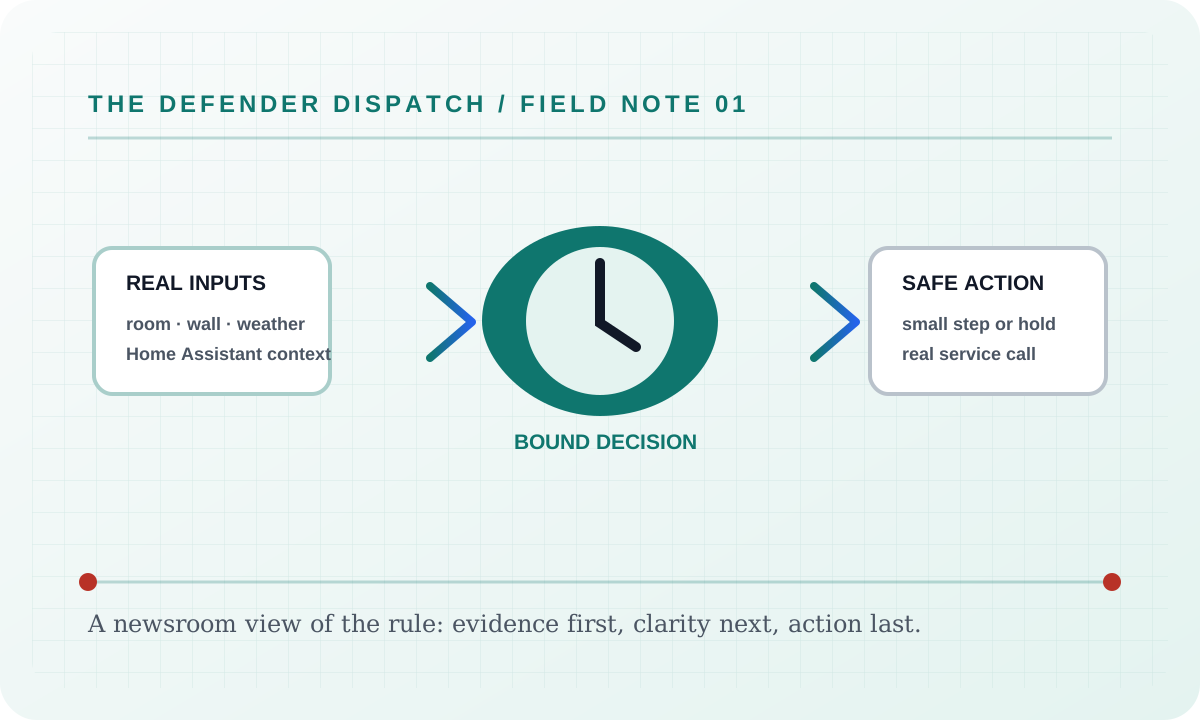
If Settings cannot obtain one of its required real inputs, it reports a blocked, held, or unavailable result and leaves the background worker’s Home Assistant refresh running. It never fills a missing room reading, audit event, weather sample, usage value, or device state with a simulator value. If a real Home Assistant command is rejected, the user sees the service’s actual error and the article’s surface remains available for recovery.
Security considerations
This feature consumes only the configured Home Assistant entity data, local settings, and the audit context named above. Tokens and credentials stay in the server environment; the static documentation site does not collect analytics, transmit search text, or embed third-party assets. Logs and exports should be reviewed before sharing because real entity names and timestamps can identify a household.
Verification
Verify the shipped behavior at the feature’s live page or endpoint, then run the repository’s documented build and test commands. Confirm the real-input and real-error paths, keyboard access, reduced-motion behavior, and a 390 px viewport without horizontal overflow. Record the exact commit and workflow result when publishing a release; a static screenshot alone is not proof of a live Home Assistant command.
Suggested articles
- Feature briefs — find every documented surface and guard.
- Defender Logic — follow the complete decision cycle and its bypass rules.
- Settings — inspect persisted configuration, language modes, and safety limits.