AC Defender Defender Dispatch · field notes for a real thermostat
Newsroom edition · operational documentation, updated with each release
Language & voice

Choose English, playful Hong Kong Cantonese, or bilingual labels. Funny levels style the surrounding voice; safety facts never change.

These preferences stay in this browser. Article names, dates, commands, and safety boundaries remain factual.
Back to home

AC Defender Dispatch · Field report

Context menus and mobile tab editing

The thermostat that holds the line — Home Assistant companion.

Reported for operators Evidence-led Updated with the shipped tree
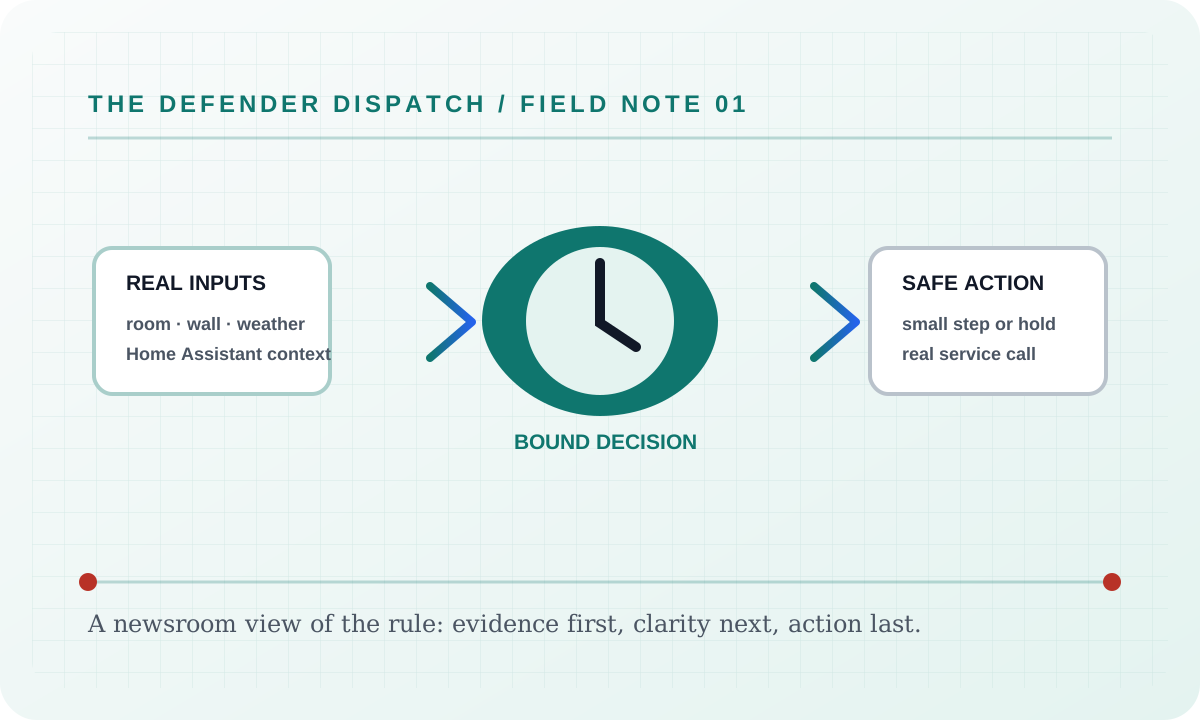
Editorial wire graphic showing real inputs becoming a bounded decision and a safe Home Assistant action

Context menus and mobile tab editing

Every signed-in AC Defender page now owns its context menu. Right-click a tab, group label, control, card, navigation item, or page surface to open a Material Design menu beside that exact target. Keyboard users can focus the same target and press Shift+F10 (or the platform context-menu key). Touch and pen users can press and hold an app tab for 620 ms.

The menu is not a browser imitation painted on top of the page. Its commands use the same Blazor state that powers the visible tab strip: activating, pinning, grouping, and closing a tab therefore retain the existing navigation and persistence rules.

Behaviour and configuration

Each menu identifies the target by its accessible label, then shows only actions that target can actually perform. Tabs offer activate, pin/unpin, group assignment, appearance editing, and close. Group labels offer local group search, rename/removal, and group appearance editing. Other controls and surfaces offer appearance editing, accessible-label copy, and same-site link opening when a real link exists.

The search field filters only the currently visible menu actions. Plain text is the default; its adjacent full regex builder uses the shared .NET engine, i/m/s flags, a 512-character pattern limit, a 16,384-character candidate limit, and a 100 ms timeout. Menu queries are ephemeral and are not written to settings history.

Keyboard shortcuts shown in the right-aligned shortcut column are registered shortcuts, not hints:

Shortcut Action
Shift+F10 or Context Menu Open the menu for the focused target
Shift+Alt+A Open appearance editing for the focused target
Alt+P Pin or unpin a focused app tab
Enter Activate a focused app tab

On narrow screens, the menu clamps its coordinates to an 8px viewport inset, caps its height, and scrolls internally. It paints an opaque background, border, elevation, and shape so page text never shows through. Mobile app tabs and pin buttons use 44px minimum targets.

Safety and unsaved-work protection

The context menu never calls Home Assistant and cannot change climate.dining_room. It changes browser presentation and navigation metadata only. An active tab cannot be closed from its menu; pinned tabs must be unpinned first; and the command tab remains available as the navigation fallback. Those checks run again when the command executes, rather than trusting a disabled button that might have become stale.

A touch long press is cancelled when the pointer moves more than 12px, lifts, or receives a pointer cancel event. A completed long press suppresses its following synthetic click, so editing a tab does not accidentally navigate. Horizontal tab-strip scrolling remains available.

Appearance targeting stores only a local presentation descriptor (target kind, stable interface identifier, and accessible label) before opening Settings. It contains no Home Assistant token, account secret, thermostat state, or user-entered settings value. Opening links from the menu is restricted to the current site origin.

Failure modes

  • If JavaScript interop is unavailable, links, buttons, the rail, tab keyboard navigation, and all thermostat controls remain usable; only the enhanced context menu is absent.
  • Invalid or timed-out regex input shows no matching actions and leaves the query editable.
  • Browser clipboard or pop-up refusal becomes a non-blocking notification; the source label or link remains visible for a normal manual action.
  • A protected close request is rejected again at execution time and explained in a notification.
  • Moving a touch pointer cancels the 620 ms timer instead of fighting horizontal scrolling.

Verification

AppContextMenuPolicyTests covers pinned, active, and command-tab close protection; generic appearance access; bounded plain/regex menu search; and the JavaScript/Razor/CSS integration contract. Run:

dotnet build
dotnet run --project HomeAssistantAcDefender.Tests/HomeAssistantAcDefender.Tests.csproj

Runtime proof uses the real signed-in application at desktop and 390 CSS pixels: open menus by right-click, Shift+F10, and touch/pen long press; test edge placement, search, regex validation, pinning, group assignment, Escape/outside dismissal, and confirm zero console errors plus no horizontal overflow. No simulated thermostat state is needed.

Suggested articles

Suggested next reads

Keyboard desk

Find a feature

Search every docs destination. Press Escape to close; plain text is the default and the builder is available beside this field.

0 destinations shown

APIOpen the documented feature brief. AccessibilityKeyboard, screen-reader, reduced-motion, contrast, and narrow-layout behavior across the hosted app and documentation. Alectra Peak Power SaverMakes the defender more chill and resource-saving when Alectra Hui reports on-peak, high price, or high power use. AlgorithmsSearch every AC Defender algorithm and open the full wiki article for each one. App tabsOpen the documented feature brief. Appearance editorOpen the documented feature brief. ArchitectureOpen the documented feature brief. Changelog viewerOpen the documented feature brief. Comfort BudgetCaps how many safe corrections happen inside a rolling window so the AC is not constantly nudged. Comfort CompromiseBlends a repeated wall choice into a temporary target, then fades it back to the website target. Comfort EnvelopeLets a tiny safe wall preference rest for a while instead of being corrected the instant it appears. Comfort MemoryLearns a small time-of-day target bias from repeated safe wall choices and re-applies it later that hour. Comfort PaceThe high-frequency planner: under heavy wall fighting it waits for a calm weather, sensor, or clock-aligned slot. Comfort Sync (quiet recovery)Spaces out and softens corrections so a fixed thermostat does not look like an instant robot. Command CamouflageGives a recent helper command time to look normal before another safe correction appears. Command paletteOpen the documented feature brief. Conflict QuietStands the defender down during an obvious tug-of-war over the thermostat. Context menus and mobile tab editingOpen the documented feature brief. Cool Mode RestorePuts the thermostat back into cool mode whenever someone switches it to heat/off/auto. Cool-Outdoor Shutdown (Open-Window Armistice)When it is genuinely cool outside and the forecast says it stays cool, the defender turns the AC fully off — and turns it back on by itself when the weather or the room demands it. Cooler Intent Fast LaneWhen people keep dialing the wall cooler, it skips quiet waits so the room cools sooner. Cooling Failure WatchRaises a repeating MEGA alert when cool mode is demanded but the AC is not really cooling, escalates to a full-site OMEGA alert when a rising room confirms it, then turns the AC off only for that confirmed failure until the room warms 0.5 C. Cooling RunwayGives the AC time to work after cooling starts before nudging the setpoint again. Defender LogicThe searchable decision cycle and exact rule text for every AC Defender algorithm. DeploymentOpen the documented feature brief. Desired-State EnforcerMakes the owner's chosen AC state win automatically: if someone else turns the unit off or moves the setpoint, it restores the exact desired state and keeps it there. Dim-sum startup surpriseOpen the documented feature brief. Dynamic CooldownA frequency-based quiet period after a manual thermostat change. Emergency ProtocolsOne-tap stand-down modes for too-cold, someone-upset, and suspicion situations. Energy & CostsOpen the documented feature brief. Every Guard, Explained SimplyA searchable plain-language guide to every AC Defender algorithm. Fan Energy SaverOptionally moves the fan to an energy-saving mode when the room is near target. Field Kitchen (food rations)Banks unspent AC dollars during siestas and cool-outdoor shutdowns, and spends them on forecast-hot days so the monthly budget eases exactly when cooling matters most. Front-door Guard PostPauses the defender and can turn the thermostat off when a real front-door person detector trips. HVAC AlibiWaits for a real HVAC action transition so a safe correction lands near a normal thermostat event. Heat, Pain & Survival FactsSourced hearing, heat-illness, and immediate personal-safety facts beside the playful Yell-O-Meter. HomeOpen the documented feature brief. Human NudgeMakes the final safe setpoint command look like a normal thermostat step instead of a precise bot number. Line counts and release archivesOpen the documented feature brief. Manual Comfort GraceLeaves a manual wall change alone while the room still feels comfortable. Natural CadencePicks a variable future slot for safe nudges so they never land at identical, robotic times. Natural WalkbackWalks a safe-band correction toward target in small, slightly random steps instead of one obvious jump. Notification historyOpen the documented feature brief. Regex search builderOpen the documented feature brief. Release operationsOpen the documented feature brief. Remote Settling GuardGives repeated phone/Home Assistant or automation thermostat changes a quiet settling window before a safe answer-back. Repeat QuietWaits before sending the very same thermostat number again. Repeated-Raise SurrenderIf a person re-raises the setpoint to about the same value 3+ times in 30 minutes, the defender adopts their number for 4 hours — the human wins the argument. Rival Schedule WatchKnows the AC vendor app's own temperature schedule (SLEEP / DEEP SLEEP / GOOD MORNING) and defends my temp when a scheduled block pushes the wall warmer while everyone sleeps. Room Trend GuardKeeps observing when the room is already stable or cooling after a wall change. Routine TimingLines safe corrections up with a normal-looking comfort-check rhythm instead of firing instantly. Schedule & Weather RulesTime-of-day target rules, each gated by a weather activation condition. Sensor RhythmTimes nudges to just after the normal Home Assistant reading beat so they look less mechanical. Setpoint EchoWaits for Home Assistant to report back the last setpoint before sending another safe command. Setpoint StillnessWaits until the wall setpoint stops moving before a safe correction answers back. SettingsOpen the documented feature brief. Settings history filters and exportsOpen the documented feature brief. Siesta Watch (mess hall)Lets the whole guard force nap on command; while they sleep the AC eases off and the money it would have spent is banked as food rations. Stealth GovernorRuns a whole-system low-profile hold when wall touches, noticed corrections, remote changes, and helper commands make the defender look too busy. Super DefenderDetects repeated phone/Home Assistant thermostat changes and tightens correction timing without cutting thermostat Wi-Fi. Tamper TruceIf the thermostat vanishes right after a correction exchange, assume a frustrated person detached it — stand down 2 hours instead of escalating. Telemetry AlibiWaits for a normal Home Assistant/weather/usage update before a safe correction, so the nudge is not an isolated event. Thermal MomentumWaits when the room is already cooling fast enough to reach target soon on its own. Thermostat OFF super-confirmationOpen the documented feature brief. Touch IntentReads whether recent wall changes trend warmer, cooler, or mixed, and extends grace for a clear warmer pattern. Touch SignatureMatches safe nudges to the size of steps people actually use on the wall thermostat. Tug-of-War TruceCalls a temporary truce when the real thermostat bounces up and down, so answer-back commands do not look like a duel. Upstairs Comfort GuardPrioritizes cooling when upstairs rooms get hot while someone is home. Visibility GuardSlows the next safe nudge when a wall touch lands right after a defender command (someone likely noticed). Wake-Up Truce (door sensor)A bedroom door opening at dawn means that person is awake — adopt the warm truce temperature before they ever touch the thermostat. Wall SettlingWaits for someone who is still tapping the wall thermostat to stop before correcting. Weather Drift TimingTimes safe corrections to real outdoor-weather movement instead of firing immediately. Website DebounceBlocks repeated website button taps for two minutes so the UI does not spam Home Assistant. Website TourOpen the documented feature brief. Windows Electron controllerOpen the documented feature brief. Windows HTTPS update-feed contractOpen the documented feature brief. Yelling PredictionsEvery Yell-O-Meter bill band, possible household consequence, uncertainty boundary, and factual input. Yelling Survival GuideA practical before, during, and after playbook for the Yell-O-Meter, with honest limits and immediate-safety routes.