Website Tour
A picture-book walk through every page — written so simply that anyone can follow along. (The screenshots show “HA OFFLINE” because they were taken on a computer without a real Home Assistant; on your real install the numbers are live.)
The one idea behind everything: you pick a temperature you like (“my temp”), and the defender keeps the room there — even when the AC’s own app, a schedule, or another person tries to change it.
🏠 Command Center (the front page, /)
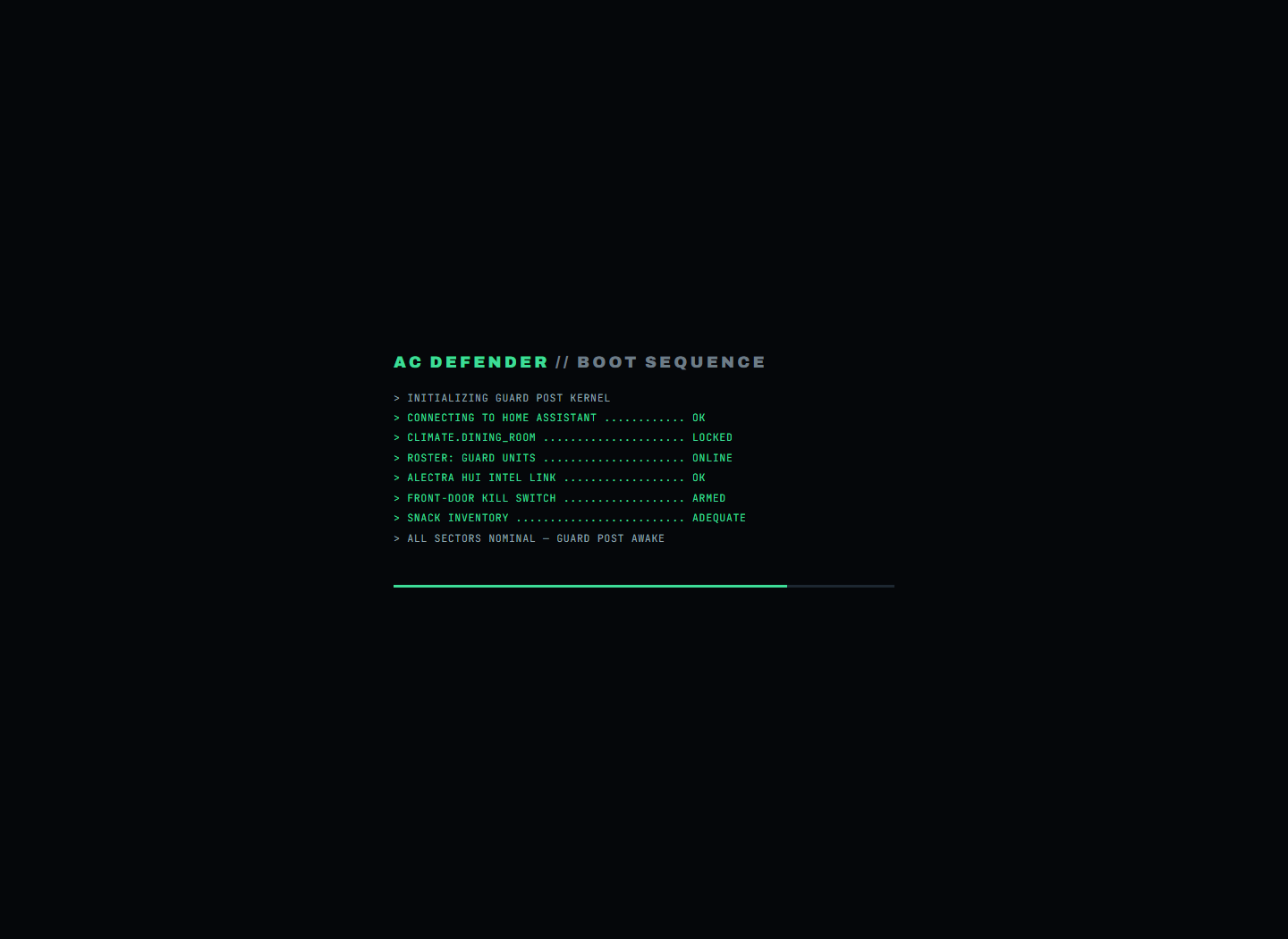
Think of this page as the guard’s desk.
- The big number is my temp — the temperature you want. Nothing on this site ever cools the room below it.
- The ring is the real wall thermostat, live. What it says is what the AC is really doing.
- APPLY MY TEMP — “make the wall match my number, please.”
- STAND DOWN (bottom-left) — the big off switch. The guards stop correcting things but keep watching 24/7.
- AC RUNTIME — HOURS COOLING — three little scoreboards: how long the AC really ran
today, this month, and ever — and right under each one, about how many
dollars that cooling cost (
≈ $1.53). No power meter needed: it multiplies the hours by the AC’s size and by the electricity price at that hour of the day. - DIRECT ORDERS — buttons for right now: read the thermostat again, step toward my temp, force cooling.
- BROTHER MAD — the apology button. Everything stops for 2 hours and the AC is eased up, so an upset person sees the system agreeing with them.
🛡️ Defense (/defense)
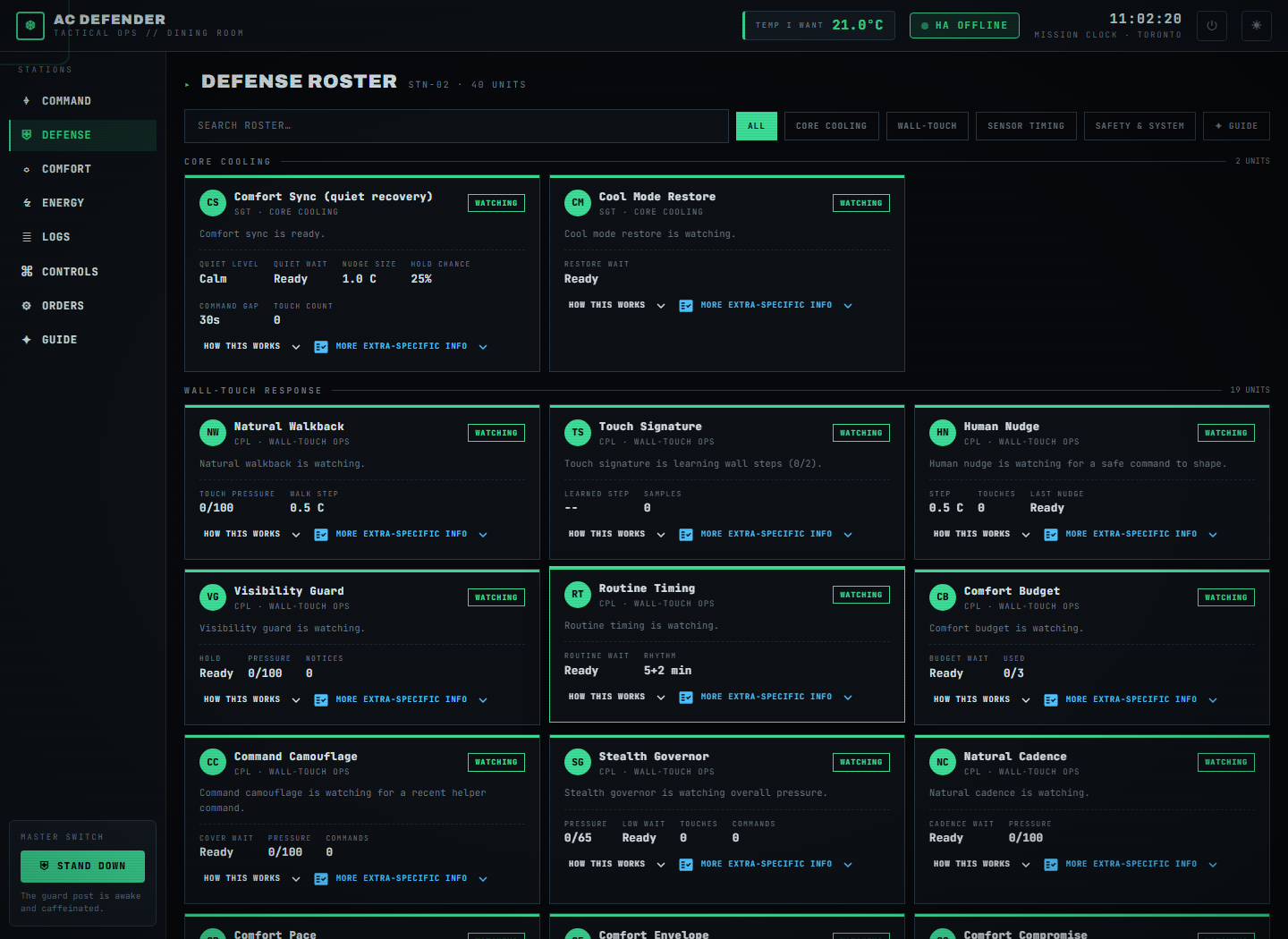
The defender is not one big rule — it is a team of little guards, and this page shows every guard as a card. Each card says what that guard watches and what it is doing right now (“Watching”, “Holding”, “Answering”…). Open a card’s “How this works” drawer for a plain explanation, or “More extra-specific info” for the full detective notes.
Examples of guards you’ll meet:
- Cool Mode Restore — if someone switches the AC off
cool, put it back (politely, after a small wait, unless the room is getting hot). - Rival Schedule Watch — knows the AC app’s own bedtime schedule (SLEEP → DEEP SLEEP → GOOD MORNING) and answers its warm pushes back to my temp. A machine gets no courtesy waits.
- Super Defender — notices when someone keeps changing things from a phone and gets stricter.
- Peace Offering / Auto apology — notices when a person is unhappy and backs off.
🛋️ Comfort (/comfort)
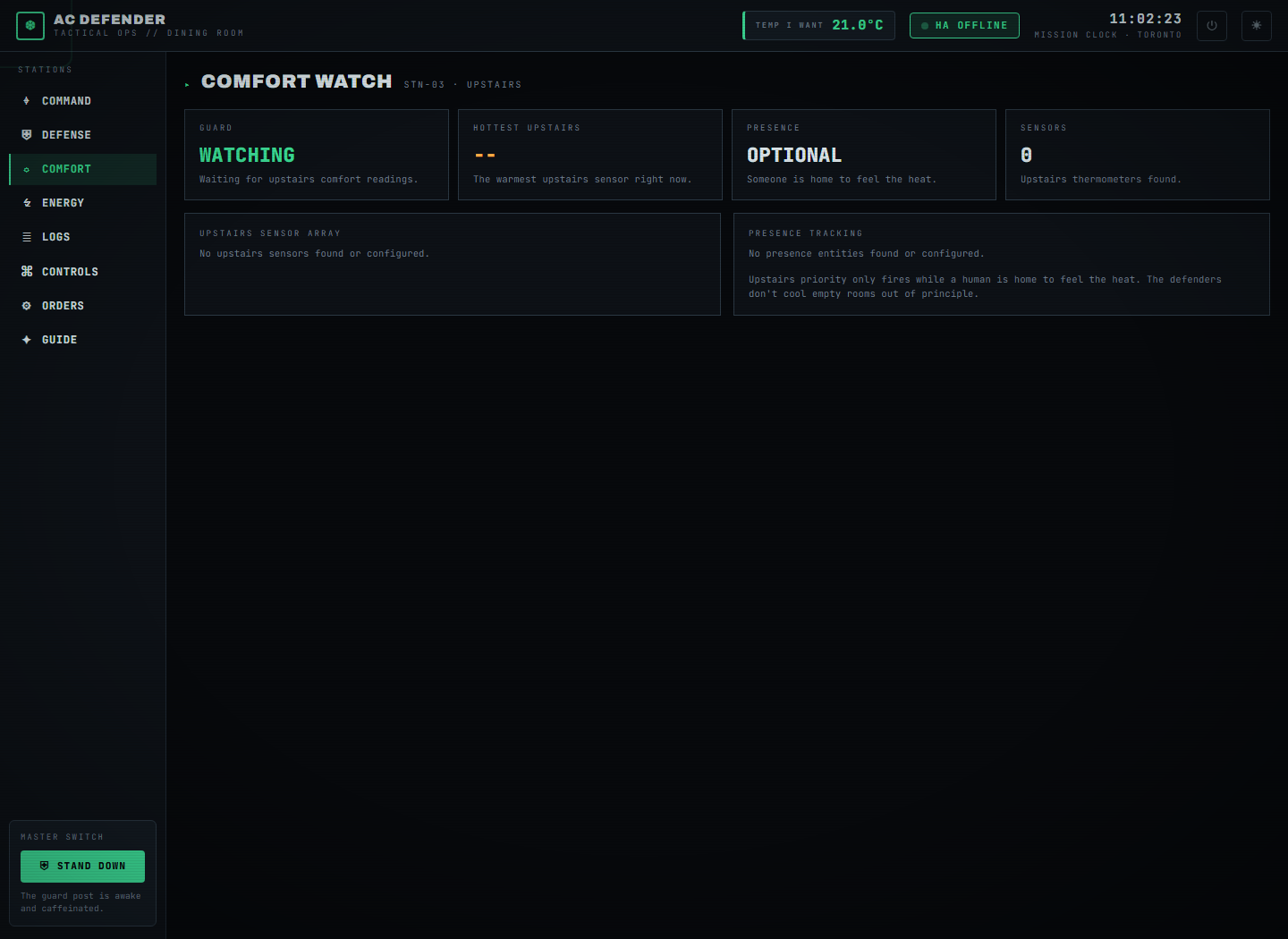
The upstairs check. If bedroom sensors say upstairs is hot and someone is home, the defender is allowed to skip its polite waiting so cooling starts sooner. Upstairs sensors can never force extra cooling on their own — they only make the defender less patient when the dining room already needs it.
⚡ Energy (/energy)
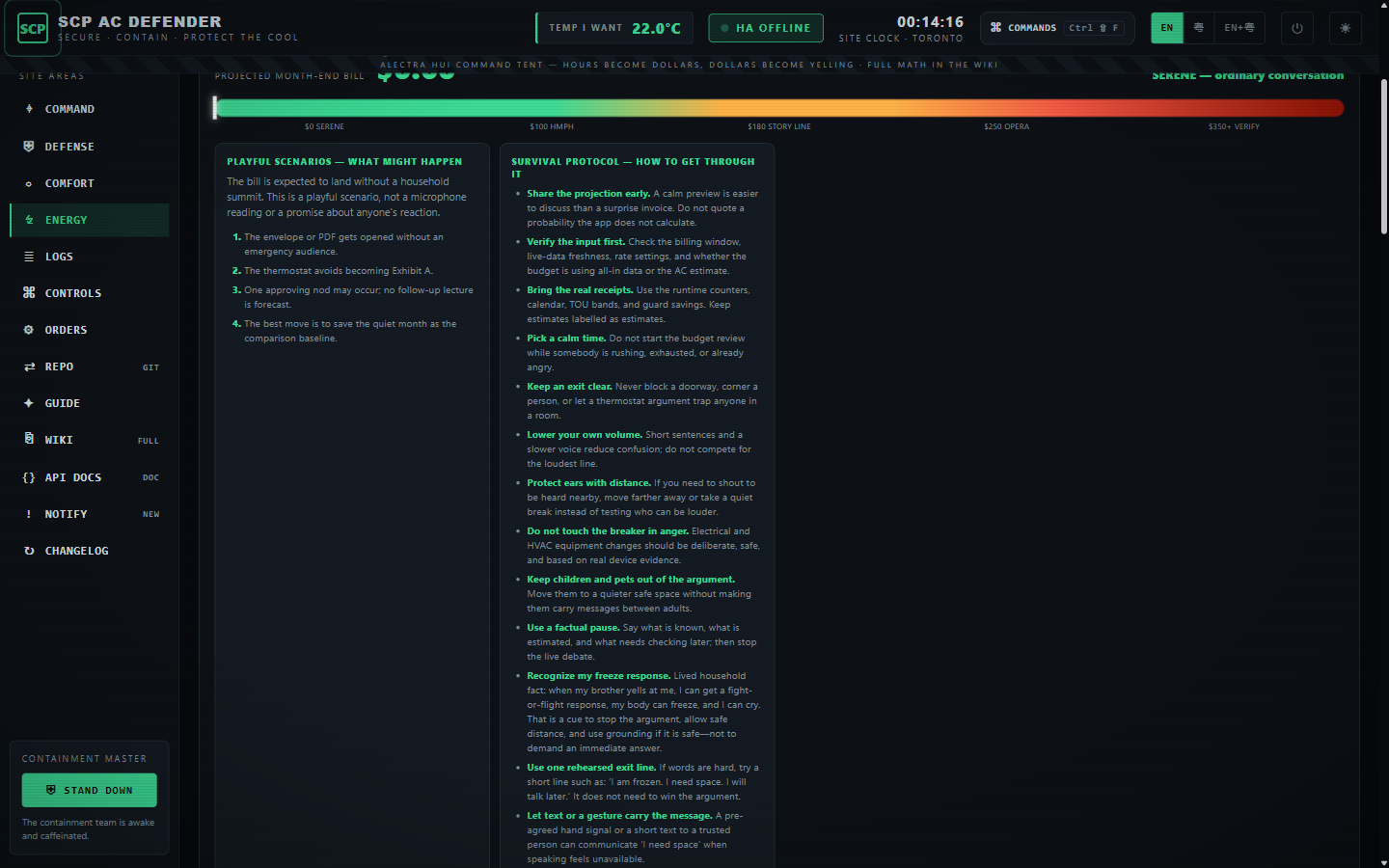
The money page. Tabs across the middle:
- Overview — electricity cost so far (today / this month / total), the current time-of-use price (“is power cheap or expensive right now?”), and the Monthly budget card if you set a budget.
- Alectra Hui / Charts / Entity Table — every live reading from the Alectra power integration, searchable, with 24-hour charts.
- Calendar — the fun one, below.
The Yell-O-Meter
The Energy overview also turns the projected month-end bill into a playful ten-band household forecast. It now shows several possible outcomes for the current band, eighteen survival steps, and a real-safety card. Only the bill projection is measured: there is no microphone, decibel reading, pain detector, or promise about anyone’s behaviour.
Open the Yelling Survival Guide for the full playbook, Yelling Predictions for every band, and Heat, Pain & Survival Facts for sourced hearing and heat guidance.
The AC usage calendar
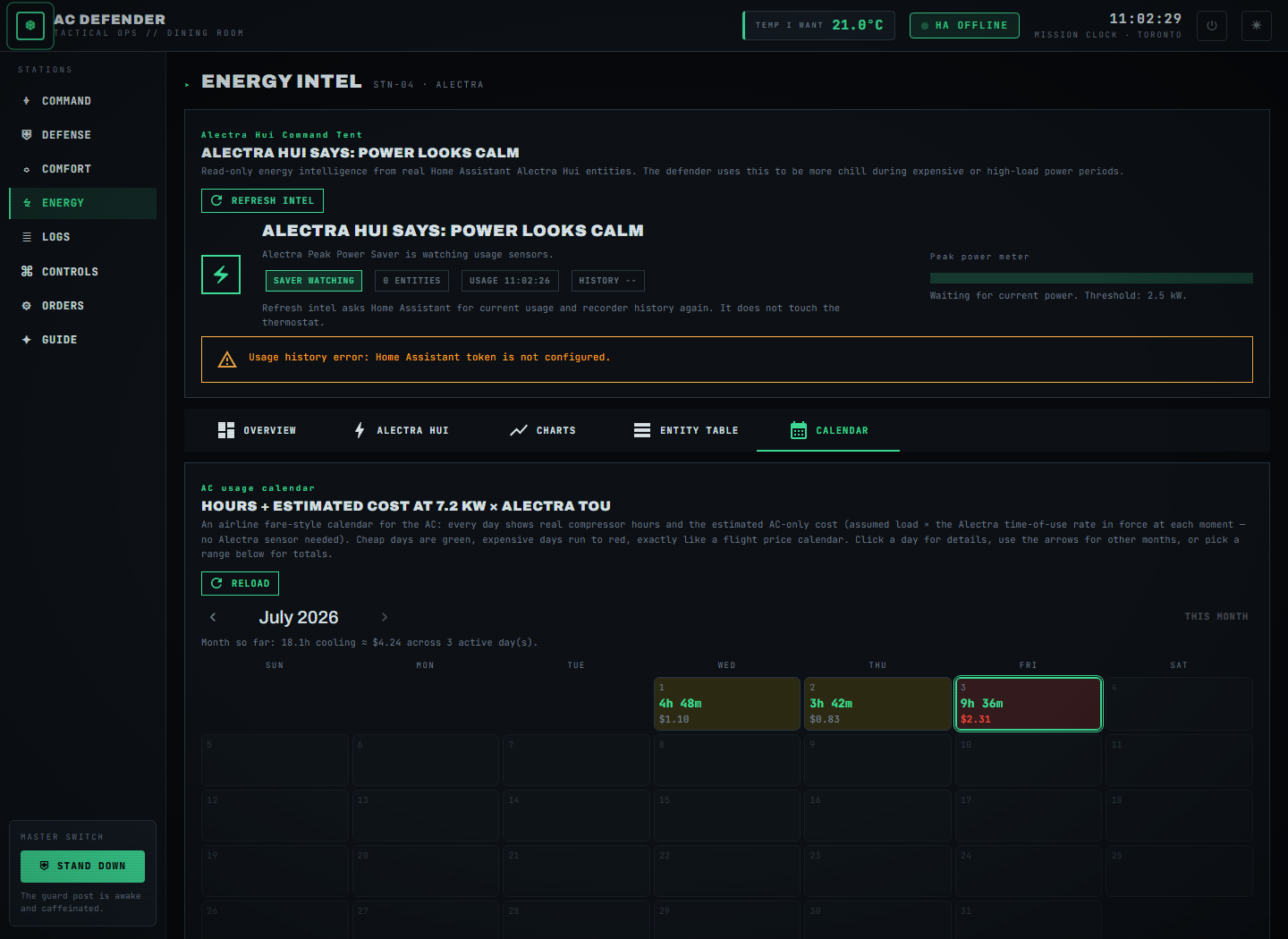
Exactly like the calendar airlines use to show cheap and expensive flight days — but for your AC:
- Every day is a little box. Inside it: how long the AC cooled that day (
4h 48m) and about what it cost ($1.10). - Green box = cheap day. Yellow = medium. Red = the expensive day of the month.
- Click a day and a sentence appears under the calendar: “Fri Jul 3 — AC ran 9h 36m for an estimated $2.31.”
- Arrows flip to other months; Range totals at the bottom adds up any start-to-end stretch you pick — one day, one week, or whole months.
📜 Logs (/logs)
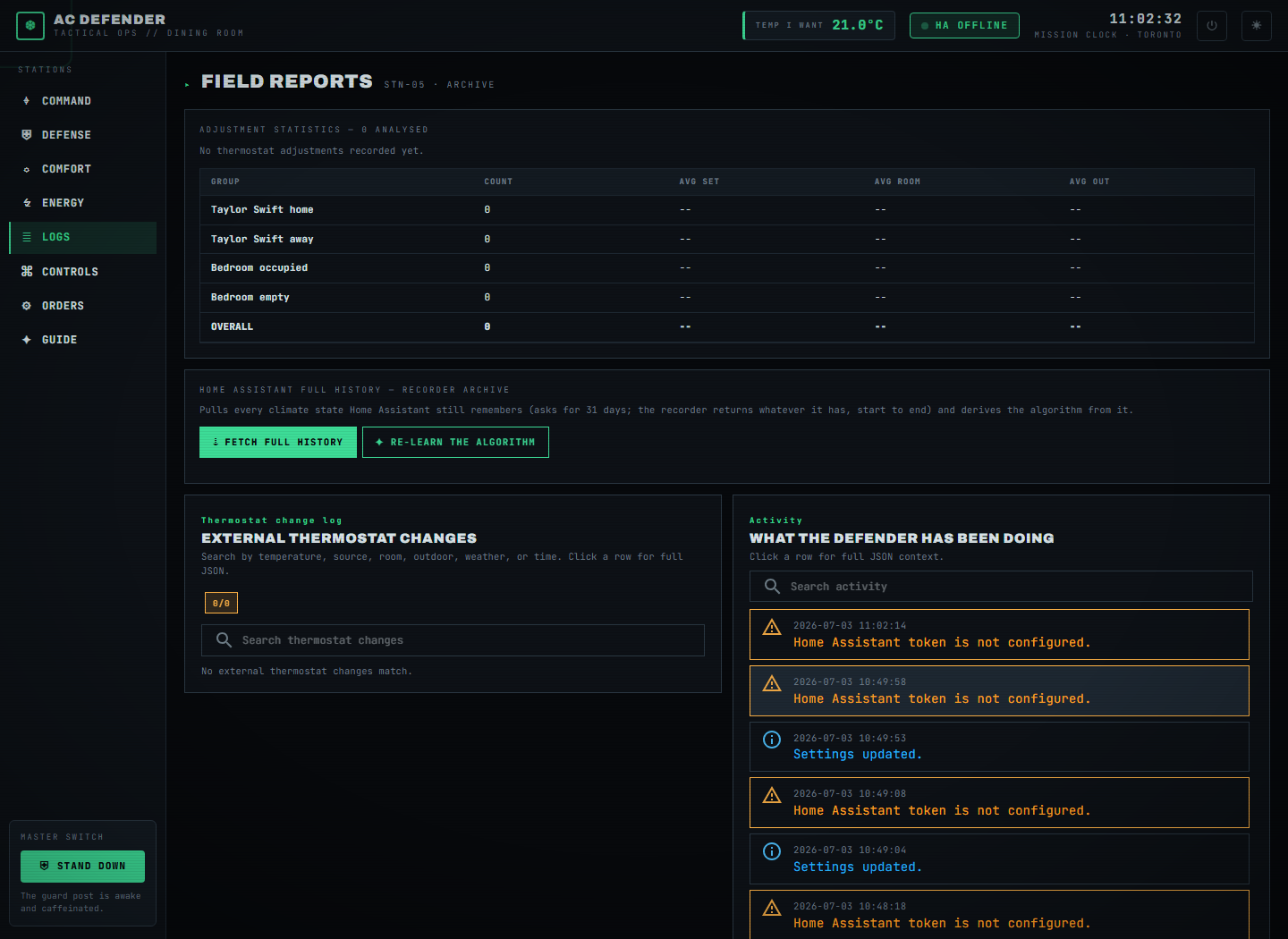
The diary. Every time someone (or something) touched the thermostat, a row appears: when,
what it changed, how warm the room was, and who the defender thinks did it — a person
at the wall, a phone app, an automation, or the AC’s own schedule (RIVAL-SCHEDULE).
Click any row for the full JSON detective notes.
🎮 Controls (/controls)
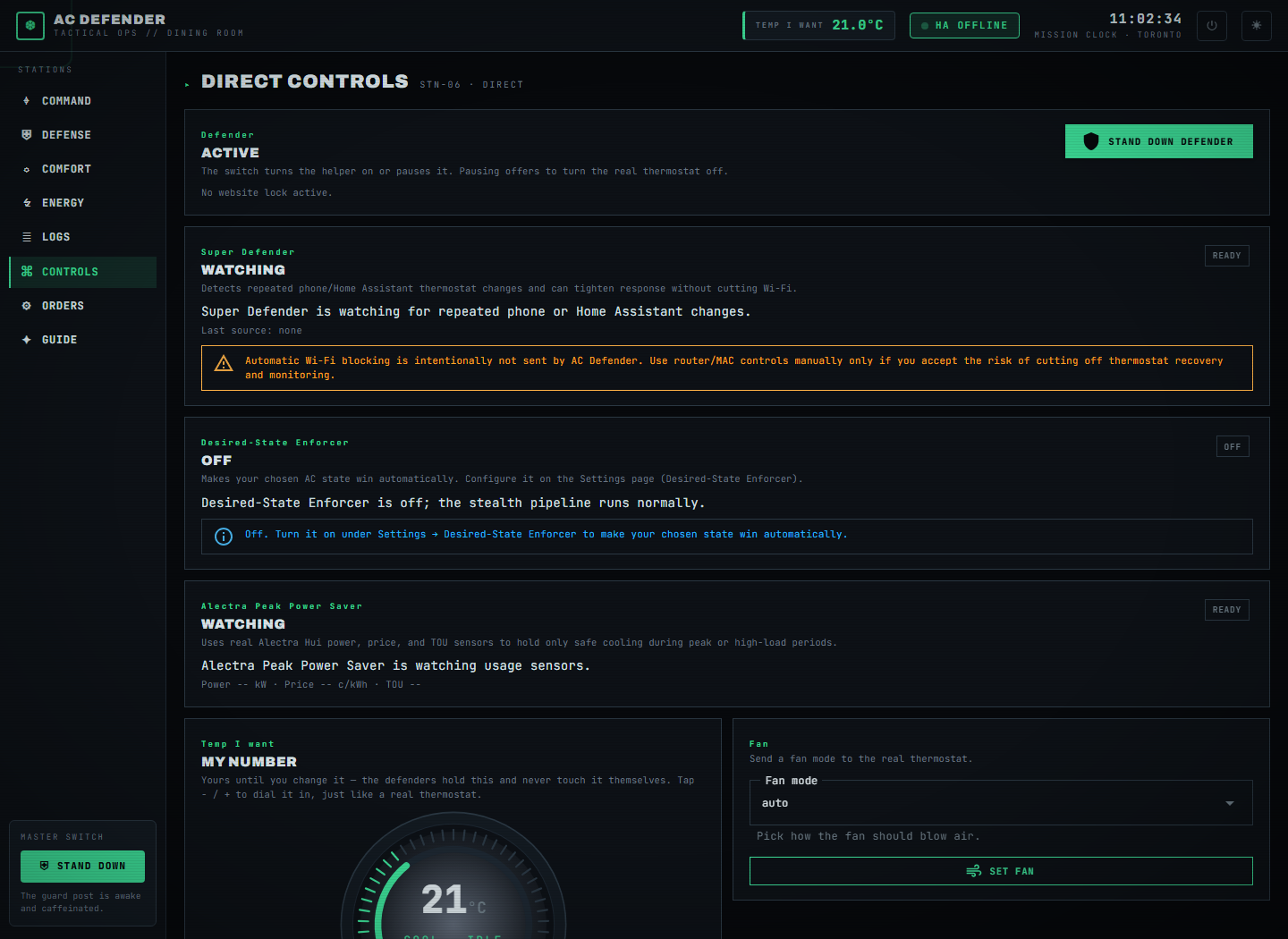
Hands-on buttons, all acting on the real thermostat: set/generate a target, change the fan, refresh, force cooling, turn the unit off, and the emergency buttons (Too cold / Someone upset / Suspicion quiet). If a button would fight a command sent seconds ago, the site makes you wait instead of spamming the AC.
⚙️ Settings / Orders (/settings)
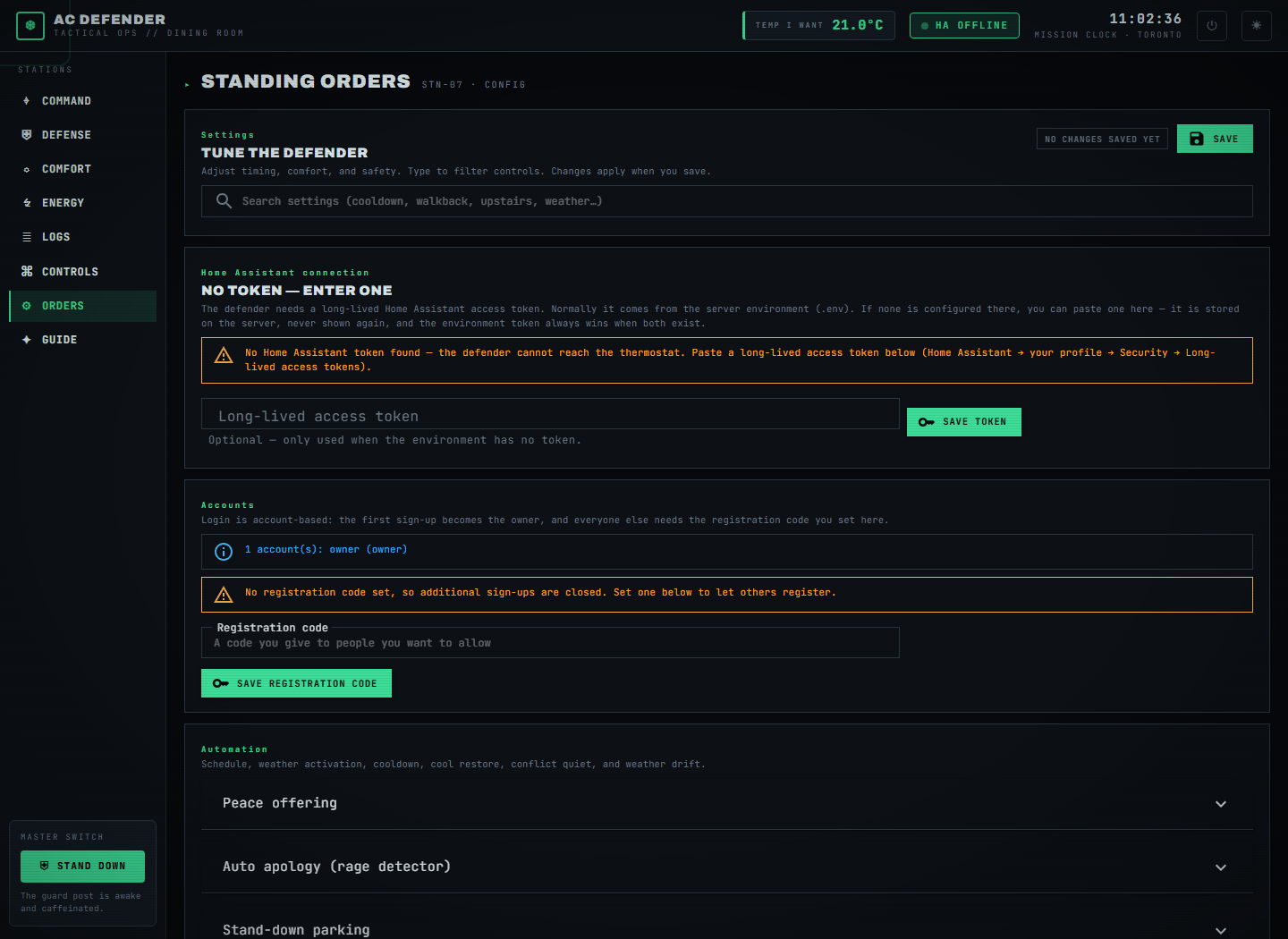
Every dial for every guard, grouped into fold-out panels with a search box. Each control has a one-line explanation under it. Highlights:
The Electricity budget panel
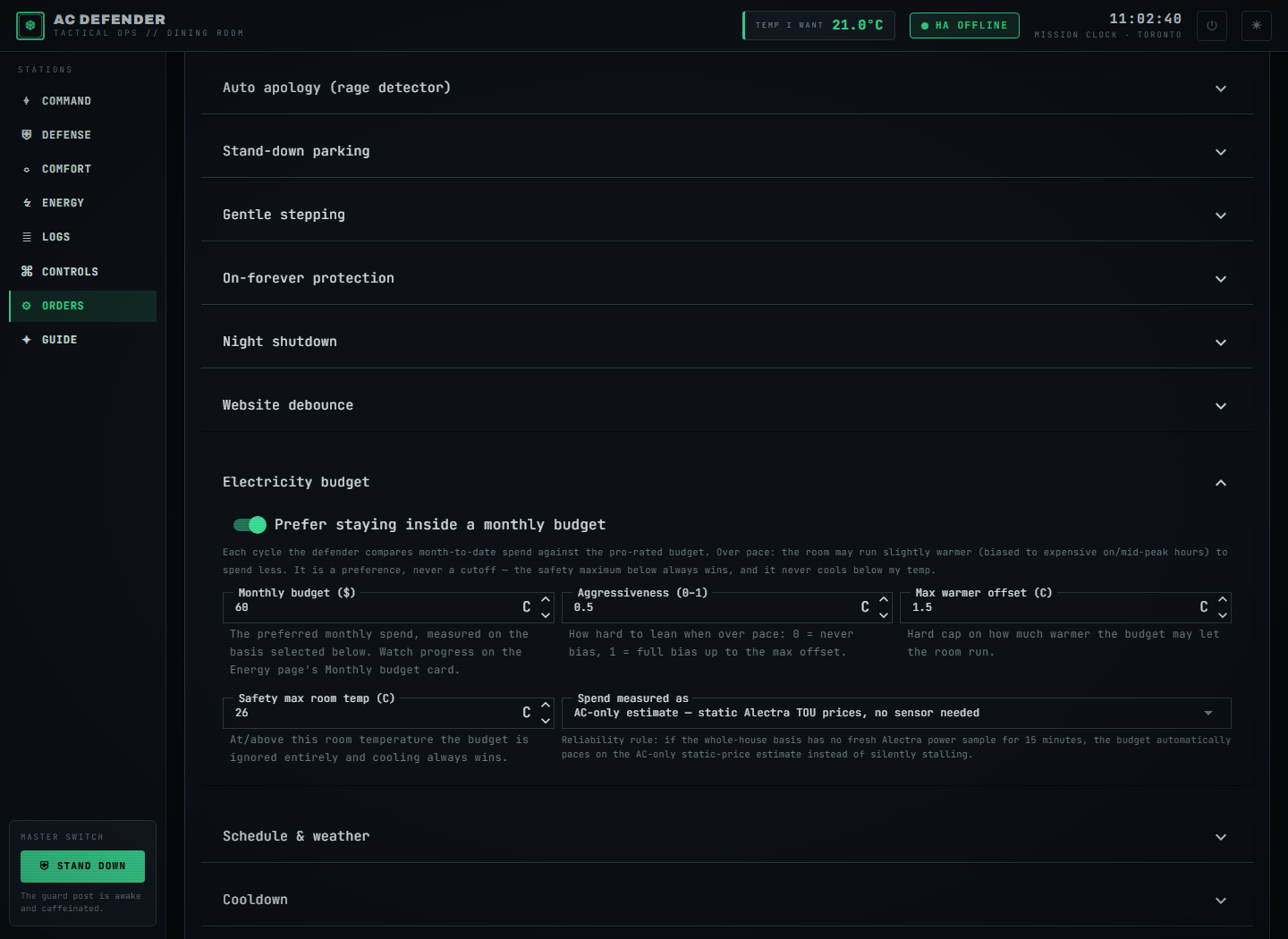
- The switch — “Prefer staying inside a monthly budget.”
- Monthly budget ($) — how much you’d like to spend this month.
- Spend measured as — either the whole-house bill (needs the live Alectra sensor) or the AC-only estimate at fixed price-per-hour rates, which needs no sensor at all. If the sensor goes quiet, the budget automatically uses the estimate — it never just stops working.
- When you’re spending faster than the month allows, the defender lets the room run a tiny bit warmer (never past the safety max temperature, and never below my temp).
The schedule editor for your own time-of-day targets lives at the bottom of this page.
📹 Front door (/camera)
A live view of the front-door doorbell, streamed straight from Google into the site (WebRTC). It starts automatically, renews itself under Google’s five-minute session limit, and sits behind the same sign-in as everything else — the camera is never public.
🔑 Signing in with Google
Besides username + password, the guard post can show a Sign in with Google button.
Click it and a short code appears (like BWW-LVW-GBRS); open google.com/device on any
device, enter the code with an allow-listed Google account, and the page signs you in by
itself. Only accounts on the allow-list may enter.
📖 Guide (/guide)
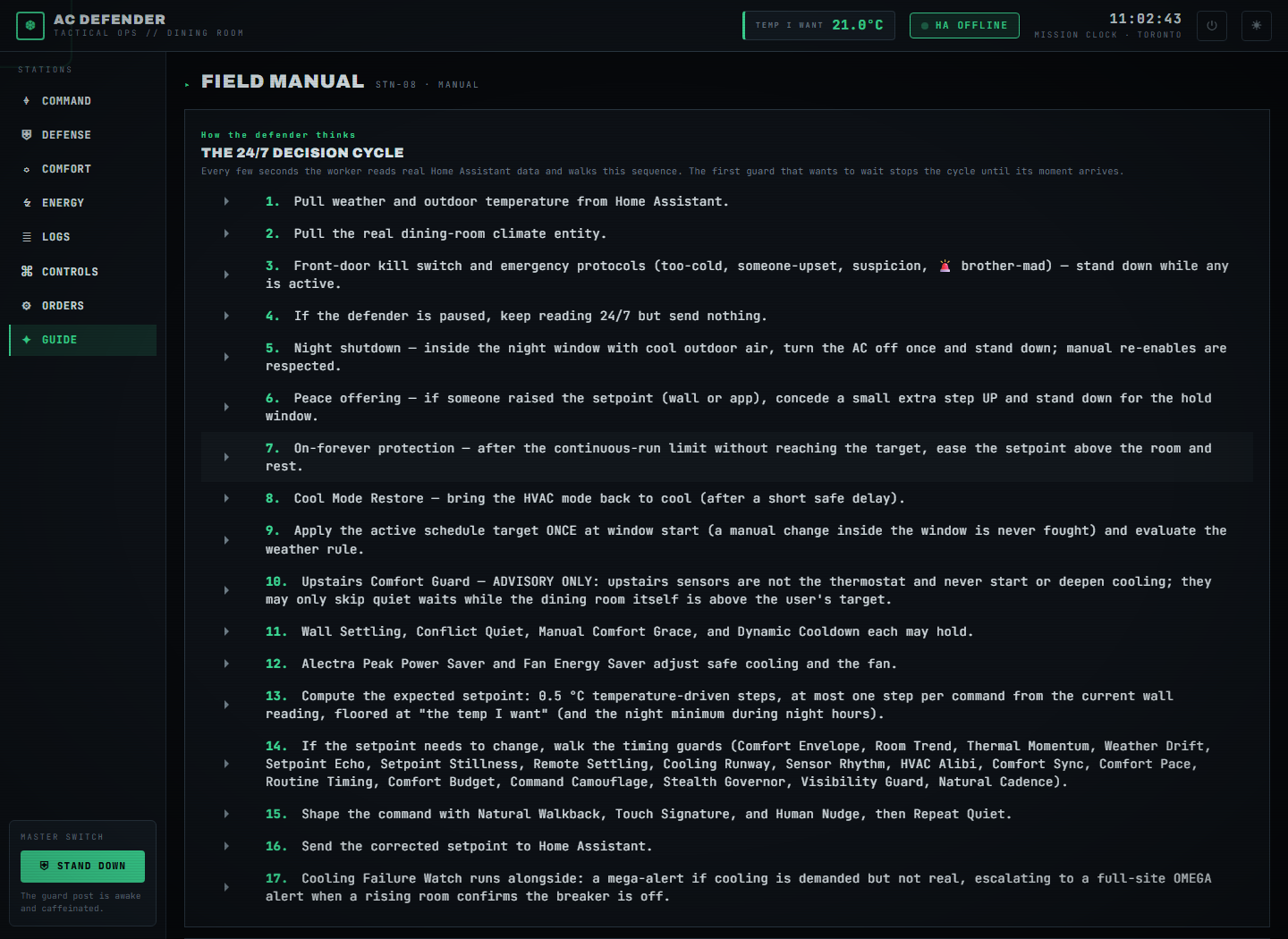
The built-in instruction manual: the full decision cycle and one section per guard, generated from the same source of truth as the Defense cards — so it can never drift out of date from the code.
Where next?
- Algorithms — searchable cards plus a full article for every algorithm.
- Every Guard, Explained Simply — every algorithm in plain words.
- Defender Logic — every guard’s exact rules.
- Energy & Costs — how the dollars are computed.
- Settings — every knob, listed.
- API — the JSON endpoints behind all of this.
Failure modes
If Website Tour cannot obtain one of its required real inputs, it reports a blocked, held, or unavailable result and leaves the background worker’s Home Assistant refresh running. It never fills a missing room reading, audit event, weather sample, usage value, or device state with a simulator value. If a real Home Assistant command is rejected, the user sees the service’s actual error and the article’s surface remains available for recovery.
Security considerations
This feature consumes only the configured Home Assistant entity data, local settings, and the audit context named above. Tokens and credentials stay in the server environment; the static documentation site does not collect analytics, transmit search text, or embed third-party assets. Logs and exports should be reviewed before sharing because real entity names and timestamps can identify a household.
Verification
Verify the shipped behavior at the feature’s live page or endpoint, then run the repository’s documented build and test commands. Confirm the real-input and real-error paths, keyboard access, reduced-motion behavior, and a 390 px viewport without horizontal overflow. Record the exact commit and workflow result when publishing a release; a static screenshot alone is not proof of a live Home Assistant command.
Suggested articles
- Feature briefs — find every documented surface and guard.
- Defender Logic — follow the complete decision cycle and its bypass rules.
- Settings — inspect persisted configuration, language modes, and safety limits.