Minecraft servers
Minecraft servers
Create and run Java edition servers on this computer, in Docker, or on another machine over SSH, and the official Bedrock Dedicated Server on this computer. Servers the app did not make can be found and adopted.
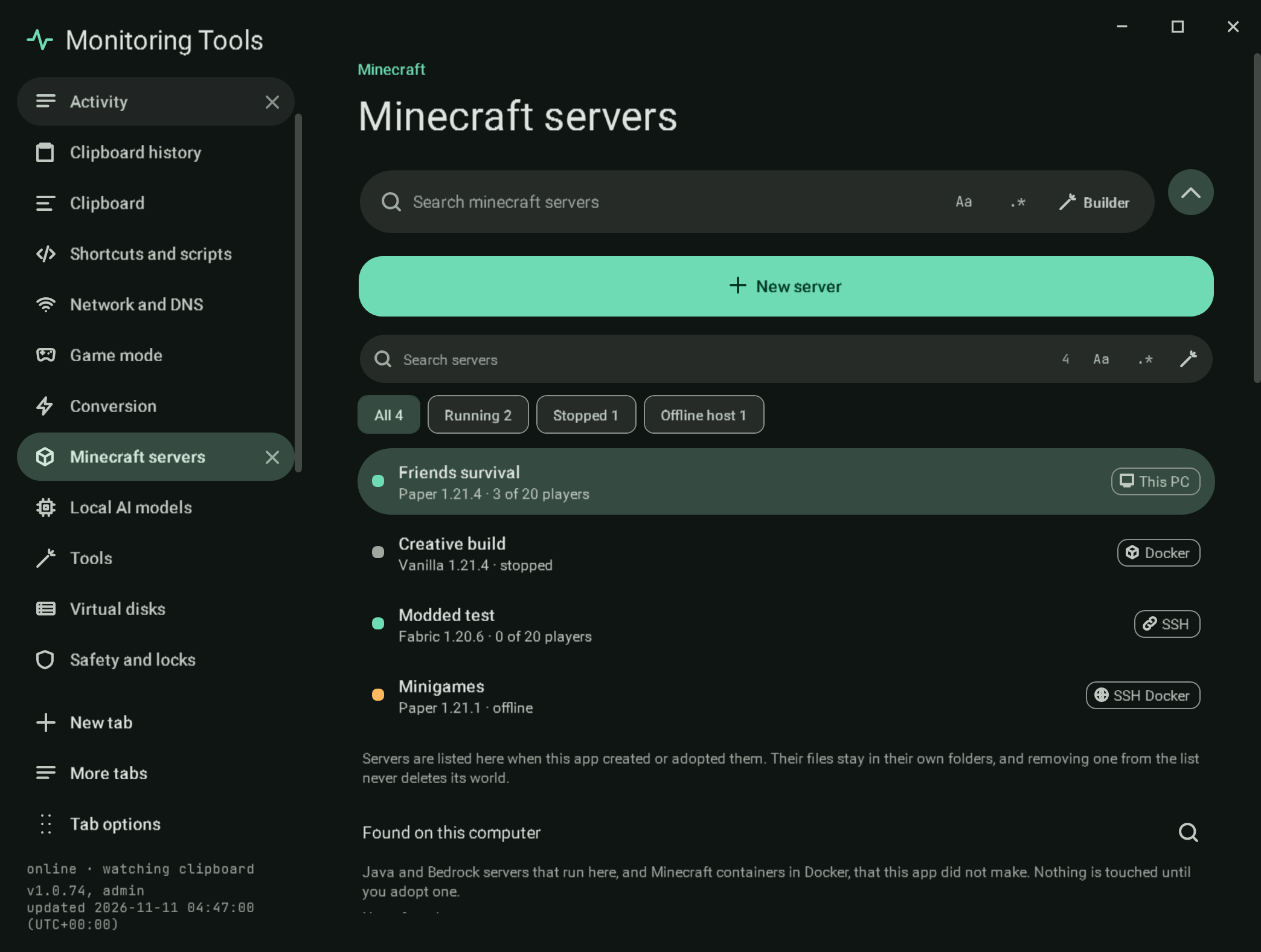
#The server list
The left side lists every server this app created or adopted. Each row shows a state dot, the name, the software and version, the players online (or the state), and a badge for where it runs: This PC, Docker, SSH or SSH Docker.
- New server opens the guided create flow.
- Search servers is the app's shared search field: plain words by default,
.*for a regular expression with the regex builder,Aafor matching case. It searches the name, version, software, target and SSH host. - The filter chips All, Running, Stopped and Offline host show how many servers each one holds.
Removing a server from the list never deletes its world, settings or backups. Below the list, Found on this computer shows servers that run here but were not made by this app, each with Adopt; see discovery.
#The header
The header shows the server's name, a state badge and a detail line with the software, version, build, where it runs and how long it has been up. The actions change with the state:
| State | Meaning | Actions |
|---|---|---|
| Running | The process or container is up | Stop, Restart |
| Starting | Started from here and not yet "Done" | Stop, Restart |
| Stopped | The host answered and the server is not running | Start, Restart |
| Host offline | Docker is not running here, or the SSH host could not be reached | Reconnect |
| Missing | The container is not there any more | Start (reports why it cannot) |
A host that cannot be reached is never shown as stopped: SSH reports a failed connection with exit code 255, and only an answer from the host itself can say the server is stopped. Copy join address copies localhost:port, or the SSH host's name and port. Open folder opens the server folder for servers on this computer.
#Where it can run
| Target | What it means | Software |
|---|---|---|
| This computer | A Java process started by the app | Vanilla, Paper, Purpur |
| Docker on this computer | The itzg/minecraft-server image with the server folder as its volume | All six |
| Another computer over SSH | A Java process on the host, signed in with your SSH key | Vanilla |
| Docker over SSH | The same image on the host | All six |
| This computer, Bedrock | bedrock_server.exe from minecraft.net, started by the app | Bedrock Dedicated Server |
Fabric, Forge and NeoForge need their own installers, so they run on the Docker targets. For SSH targets, Check host key shows the machine's key first so you can confirm you are connecting to the right one; it is stored in the app's own known_hosts, and connections use key authentication only. A server can name its own private key file (SshKey in servers.json); it is passed to ssh and scp with IdentitiesOnly, so only that key is offered. When ssh-keyscan cannot agree a key exchange with a newer server (the Windows build lacks some of OpenSSH 10's methods), the key is read by ssh itself into a scratch file instead, and still shown for approval before anything is trusted.
#Bedrock
The Bedrock Dedicated Server for Windows is downloaded from the link Mojang's download links service gives (only minecraft.net over HTTPS is accepted; Mojang publishes no checksum, so bedrock_server.exe must carry a valid Microsoft Corporation signature). It runs as a process the app starts, with its console on standard input and output: the log reads Bedrock's [date time:ms LEVEL] lines, the state turns Running at "Server started.", list answers fill the player tiles, and Stop sends stop. Its settings come from its own server.properties keys (server name, allow list, tick distance and the rest), not Java's. Backups hold the worlds folder and use save hold and save resume while it runs. The console takes a typed command line, since Bedrock has no command list to build from; the Players section edits allowlist.json and permissions.json, and add-ons and worlds are managed (see players, plugins and worlds).
On Docker it runs the community image itzg/minecraft-bedrock-server (not Mojang's own): the server's port is published onto 19132 over UDP, the container keeps standard input open and console commands go through the image's send-command; the image downloads the server on its first start (the live check took 286 s). Over SSH it is Mojang's Linux zip, downloaded on the host over HTTPS from minecraft.net and unpacked with unzip -n (existing files are never overwritten); Mojang publishes no checksum or signature for it, so only the address is checked. It is started through the same console pipe as the Java process. The live check started it for real on a Debian host (installed in 8 s, "Server started." after 3 s, list answered, a backup taken while it ran, stopped); it needs a glibc host. The install forces HTTP/1.1 because Debian's curl got an HTTP/2 error from the download address.
The worlds of a Bedrock server are moved in and out through the real Windows file dialogs, and each route is driven through those dialogs on a hidden desktop (MT_ONLY=dialogs, answered from outside with the lowlevel tools):
- Download ZIP (step
bedrock-zip) opens the native Save dialog with<world>.zipalready filled in; the check sets the file name box, presses Enter, and asserts the ZIP holds<world>/level.datand<world>/db/000001.ldband that the page says it saved. - Import a world… with a .mcworld (step
bedrock) answers the native Open dialog with a prepared .mcworld and assertsworlds/<level-name>/level.datanddblanded. - Import a world… from a folder (step
bedrock-folder) cancels the Open dialog, which opens the native folder dialog ("Choose a Bedrock world folder (the one with level.dat and db)"); the check sets its Folder box to a prepared world folder, presses Select Folder, and asserts the world landed under the level name, the source folder is untouched, and the page says it imported.
What stays out of reach: Mojang publishes no checksum for either the Windows or the Linux download, and the Docker route uses a community image rather than one from Mojang.
#The sections
Overview, Console, Players, Settings, Worlds, Plugins or Mods, Backups and Schedules. The tab bar is reachable with Tab and the arrow keys. At narrow widths the list stacks above the workspace. Sections slide in with the app's shared motion, which is skipped under reduced motion and low stimulation.
#Stored data
servers.json in the app's data folder keeps the list. Fields added with the server manager (build, backup folder, how many backups to keep, schedules, recent commands) have defaults, so a list from an older version loads unchanged and gains them the next time it is saved. A list that cannot be read is copied aside rather than overwritten.
#Failure modes
- A server that cannot start shows the error in the header and as "The last start failed" on the overview.
- A port already in use on this computer is refused before the server starts.
- The EULA must be accepted before a server will run.
#Verification
Self-test checks drive the list filter and regex search, the Host offline state of an unreachable SSH host, an older servers.json, the SSH key arguments, and keyboard focus and the scroll position in every section through two polls (the live parts redraw in place and put focus back on the same control). The live check runs, each in a throwaway folder or container: a Vanilla 1.21.4 process server; a Bedrock server (create, start, "Server started.", list, a backup while running, stop); a Vanilla server on the local Docker target (create, start, list, stop, remove by label); a server over SSH on a throwaway OpenSSH container, after approving its host key; and a server in Docker on an SSH host (a throwaway Docker-in-Docker container with an SSH server).
#Related
#Creating a server without freezing the app
Every slow part of Create server (reading the release, downloading and checking the jar, Java, Docker pulls, SSH setup, importing a world) runs on a worker thread, so the app keeps answering while it works. The guide shows a progress bar under the last step: it moves with the download percentage and runs indeterminate during steps that have no percentage, with a line saying what is happening. Back and Cancel wait until it finishes or fails; a failure leaves the guide open with the reason and adds no server. Checked by MT_ONLY=mccreate.
View this article's Markdown source on GitHub