Quick commands
Custom shortcuts and scripts
Make your own :name command. Each one is a batch or PowerShell script.
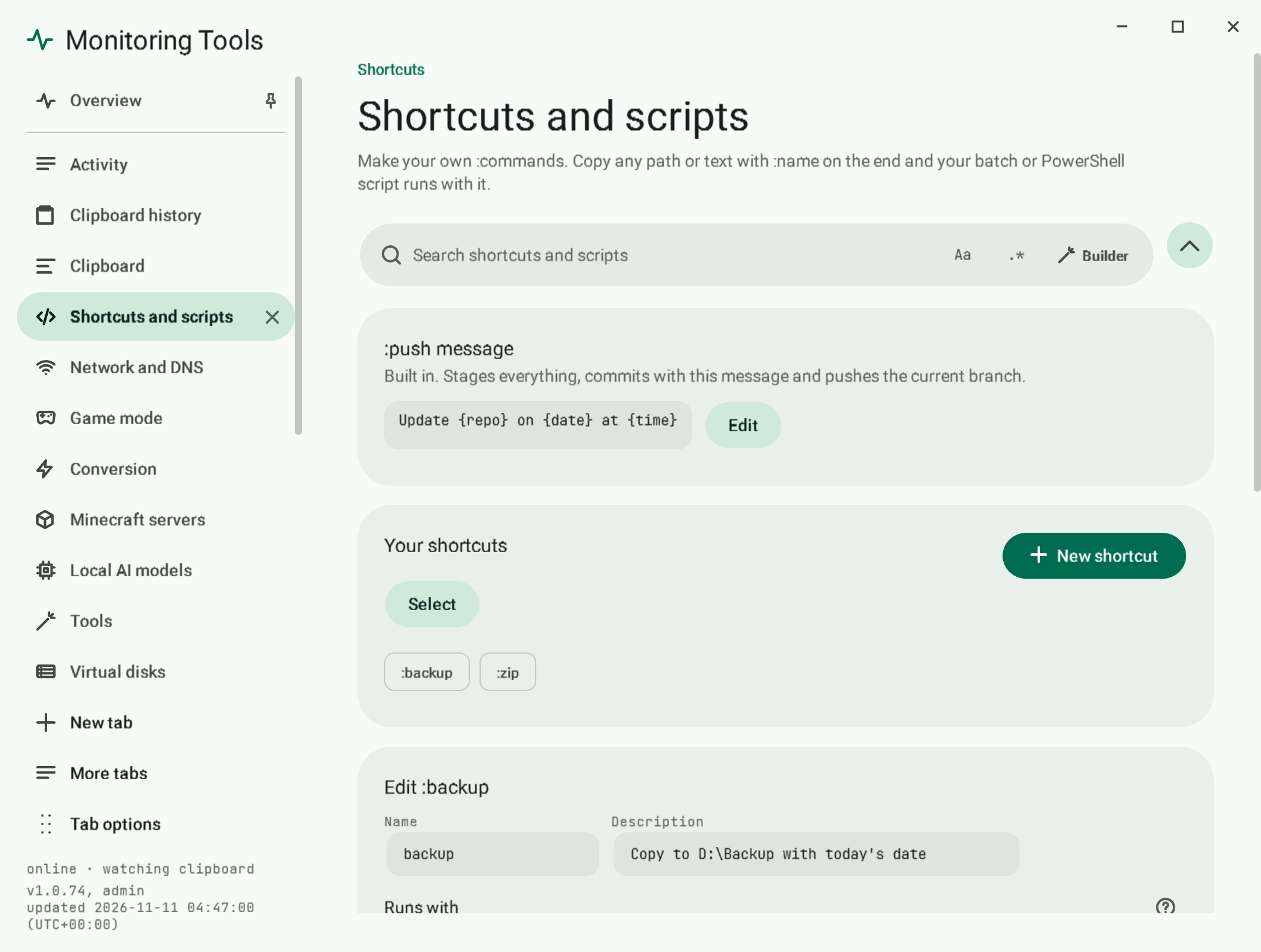
#Make your own command
- Open Shortcuts and scripts in the control centre and add a shortcut.
- Give it a name: a letter first, then letters, digits,
_or-, 2 to 32 characters.pushis reserved for the built-in command. - Choose Batch or PowerShell, and write the script in the built-in editor.
- Save. Now copying
anything:nameruns the script.
#What the script receives
Whatever came before the colon is the first argument and also the MT_INPUT environment variable.
param([string]$Target = $env:MT_INPUT)
Write-Output "Running on: $Target"
In a batch script use %~1 or %MT_INPUT%.
#Options
- Show window: run visibly instead of hidden.
- Run elevated: ask for administrator rights through UAC. Environment variables do not pass through that hop, so the argument is the reliable way to read the input.
- Description: shown in the list and searched by the page search.
#Where scripts live
In %LOCALAPPDATA%\MonitoringTools\scripts, one .bat or .ps1 file per shortcut.
#Failure modes
The exit code and output are recorded in Activity. A non-zero exit shows as failed.
#Related
View this article's Markdown source on GitHub
Suggested articles
Quick commands
Copy a path with a command on the end. The command runs the moment it lands on the clipboard.
Read itPush a repo from the clipboard
Copy a repository folder with :push on the end and the app stages everything, commits and pushes the current branch.
Read itConvert media
Copy a file path, add :format on the end, and the converted file appears next to the original with the same name.
Read it- Files and Docker
File tools
When you copy several files, the toast offers the file tools sheet with one tab each for move and copy, Base64, and encryption.
Read it