Quick commands
Convert media
Copy a file path, add :format on the end, and the converted file appears next to the original with the same name.
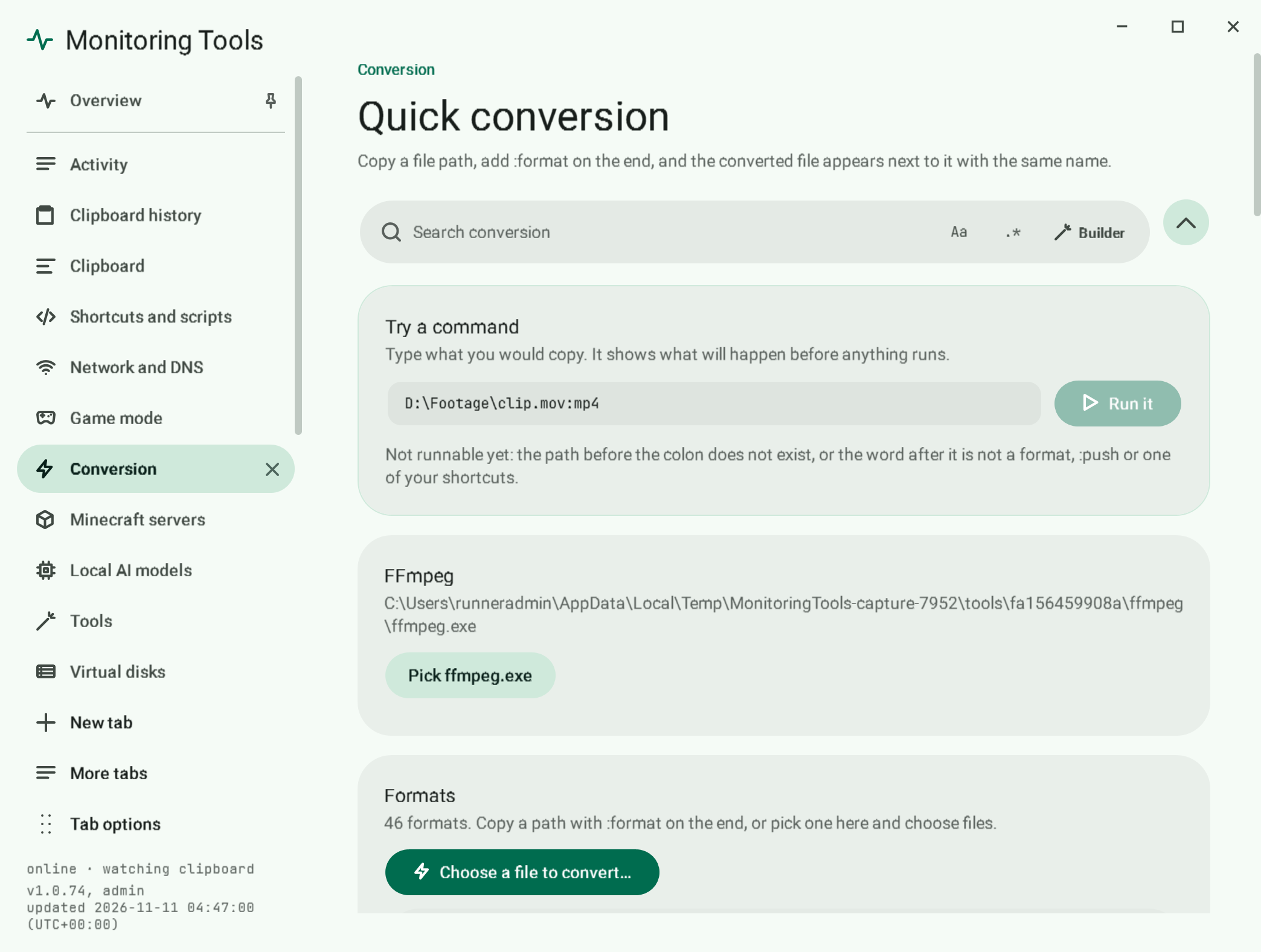
#Convert a video
- Copy the file's path, for example
D:\Footage\clip.mov. - Make the copied text end in
:mp4, for exampleD:\Footage\clip.mov:mp4, and copy that. - A toast reports progress and then the result.
You can also press a format chip on the toast of a copied media file; that does the same in one click.
#Choose from the full list
Press Convert… on the toast of a copied video, audio or picture file (or a folder, or several files), or Choose a file to convert… on the Conversion page. A dialog lists every format the file can become:
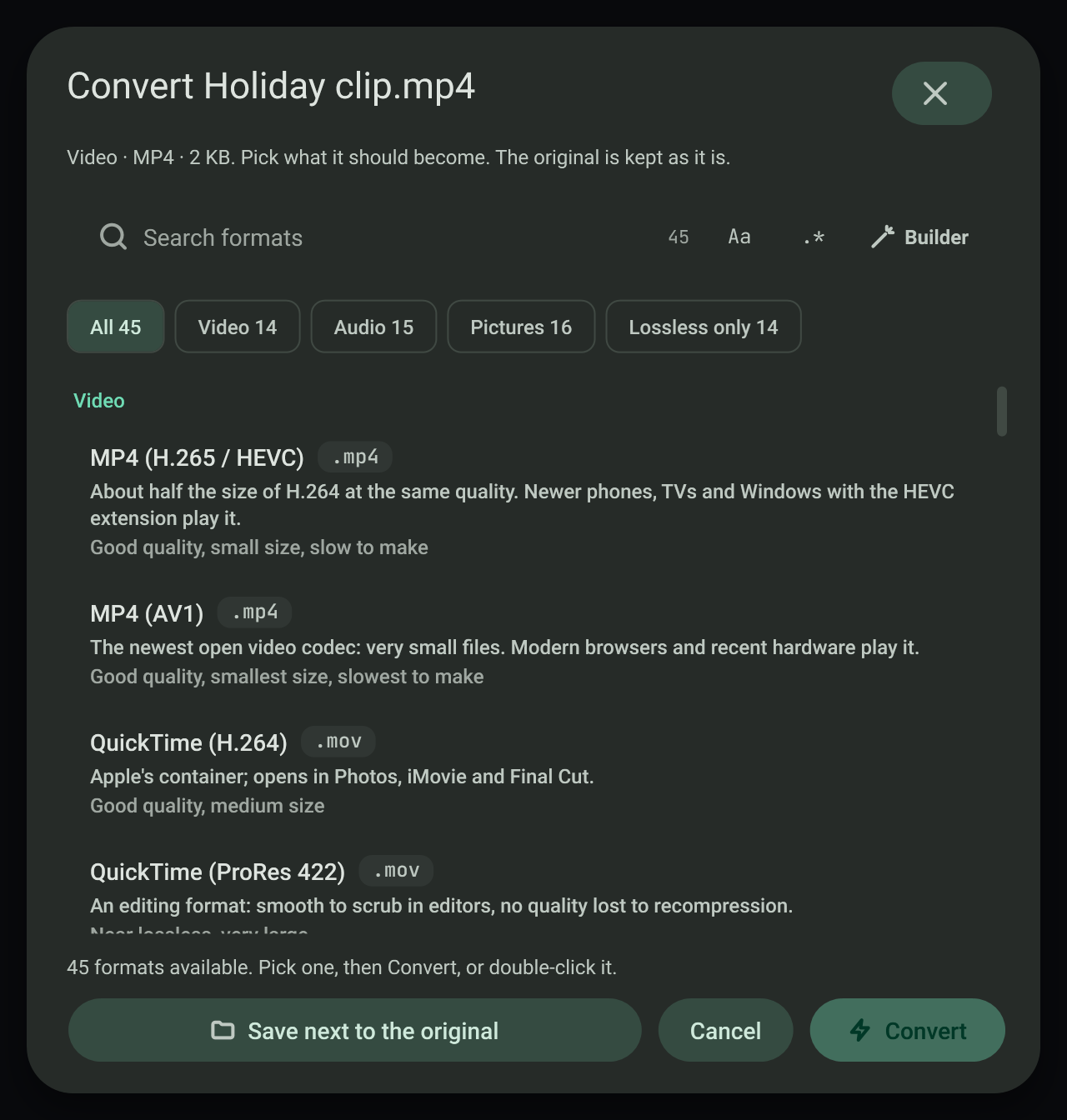
- Formats are grouped into Video, Audio, and Pictures and animations, with chips to show one group or only lossless formats.
- Each row says what the format is for, what it keeps or loses (for example "Lossless, large" or "Good quality, small size, slow to make"), and a note for this source, such as "Takes the first frame of the video" or "Keeps only the sound".
- A search field with the regex builder filters the list.
- For a folder or a selection, each format says how many of the files it can take; the rest are skipped.
- Save next to the original can be changed to another folder. The line above the buttons names the exact file that will be written; an existing file is never overwritten, a number is added instead.
- Enter or a double-click converts; Escape closes.
#Formats
The Conversion page lists every format with a search box and Video, Audio and Image filters. Each row shows the :command, the file extension, when to pick it, and what it can be made from. Convert files… on a row opens a picker limited to files that convert to that format; one file runs as a single conversion, several run as a batch under one toast. Choose a file to convert… at the top opens the full Convert to dialog instead.
46 formats, all made by the bundled FFmpeg (a self-test converts a test video, a tone and a picture to every one of them and reads each result back with FFprobe):
| Kind | Commands |
|---|---|
| Video | mp4 (H.264), hevc (H.265 in MP4), av1 (AV1 in MP4), webm, mkv (stream copy), mov, mov-prores, m4v, avi, wmv, flv, mpg (MPEG-2), ts, 3gp, ogv |
| Animation | gif, apng, webp-anim (made from a video; apng also from a picture) |
| Audio | mp3, m4a, aac, opus, ogg, flac, alac, wav, aiff, wma, ac3, wv, mka (audio copy), mp2, amr |
| Images | png, jpg (or jpeg), webp, avif, jxl, bmp, tiff, jp2, tga, qoi, pcx, ppm, ico |
Audio formats also take video (the sound is kept). One video can become a still picture (its first frame). mp4 also takes audio and adds a black picture.
Files the app recognises as a source also grew: video now includes .vob .mxf .f4v .m2v .asf .divx .rm .rmvb .y4m .hevc .h264 .h265 .3g2; audio includes .ac3 .eac3 .mka .mp2 .caf .dts .wv .ape .au .oga .m4b .tta .spx; images include .jxl .tga .qoi .ppm .pgm .pbm .pcx .dds .exr .hdr .jp2 .j2k .psd .sgi .apng .jfif.
A folder or selection batch to a still image format takes the images only; gif, apng and webp-anim also take videos.
#A whole folder
D:\Footage:mp4 converts every compatible file in the folder.
#FFmpeg
Conversion uses FFmpeg. FFmpeg, FFprobe and portable Git are bundled with the installer, so it works offline. If FFmpeg is missing, the toast offers to install it with winget, or you can point to your own copy on the Conversion page.
#Failure modes
- A file that already exists with the target name is left alone; nothing is overwritten.
- The original is never deleted or changed, wherever it is, including files in the temp folder such as mail attachments.
- If FFmpeg reports an error, the Activity page keeps its message.
#Related
View this article's Markdown source on GitHub
Suggested articles
Quick commands
Copy a path with a command on the end. The command runs the moment it lands on the clipboard.
Read it- Clipboard
Clipboard toasts
A small card slides into the bottom-right corner each time the clipboard changes. It stays for 3 seconds and holds while the pointer is over it.
Read it Push a repo from the clipboard
Copy a repository folder with :push on the end and the app stages everything, commits and pushes the current branch.
Read itCustom shortcuts and scripts
Make your own :name command. Each one is a batch or PowerShell script.
Read it