Files and Docker
One-click packing
Quick packing starts immediately. The task handoff records the exact built checks and remaining verification limits.
#Pack a copied selection
Copy a file, folder, several files or folders, or quoted paths. Choose Pack to ZIP or Pack to VHDX on the file notice. The action starts immediately in a dedicated progress dialog. It does not open the control centre or ask for another Pack click. The full archive and virtual-disk tools remain available when you need custom options.
One output contains the selected items. It is placed in their parent folder; selections from different folders use the first item's parent. The output name comes from the single item or the parent folder. A number is added when the name is occupied. Existing output is never overwritten. The dialog shows the actual destination.
#Follow progress and keep the originals
The operation counts the selection, writes the output and verifies it. Progress reports its actual stage, current item, bytes and file counts. A percentage, speed or remaining time is shown only when measurable. Closing the running dialog hides it without cancelling the job; use the operation's activity action to reopen it.
ZIP uses normal Deflate compression without a password. VHDX uses a dynamic GPT/NTFS disk, grows when necessary, verifies copied files with SHA-256 and finishes detached. Creating and attaching that disk requires Windows' native elevation consent. Declining consent is an incomplete operation, never success.
Originals remain unchanged. Duplicate and overlapping selections are counted once. Missing, unreadable or changing inputs, insufficient space and verification failures are reported explicitly. Cancellation removes only incomplete output owned by the operation. If a disk cannot detach or an output cannot be removed, the retained path and recovery action are shown.
Links are skipped with an explicit partial-result warning. Inventory stops at 250,000 entries or 128 nested directory levels rather than silently publishing a truncated selection.
#Finish
After complete verification, the live progress dialog closes immediately. Activity's Open progress reopens its retained result with Show in folder and Copy output path. A manually reopened result stays visible. Explorer and the main workspace do not open automatically. Partial, cancelled and stopped results remain visible and explain what did not complete.
#Lazy clipboard shortcuts
With Quick commands enabled, copy the files or folders, then copy the exact word vhd to start a new quick-pack VHDX. Matching ignores case and surrounding whitespace. The selection is held in memory, never recovered from stored clipboard history. Each selection is consumed once; copy it again to run another operation. An unrelated clipboard copy, a sensitive item or a disabled quick-command route clears the selection. Missing or unsupported inputs stop the lazy operation without silently omitting them.
To add a selection from another directory, copy it and then copy vhd add. This targets the most recent successful quick-pack VHDX in the current application session. vhd always creates a new disk. If there is no remembered successful disk, choose one explicitly rather than guessing. The file notice's Choose VHDX action selects another existing target. Reopened VHDX results also offer Add copied files and Choose VHDX.
Starting a direct action consumes only its matching pending selection. An older notice leaves a newer, different selection alone. Cancelling the target picker leaves the pending selection intact.
#Preserve an existing disk while adding
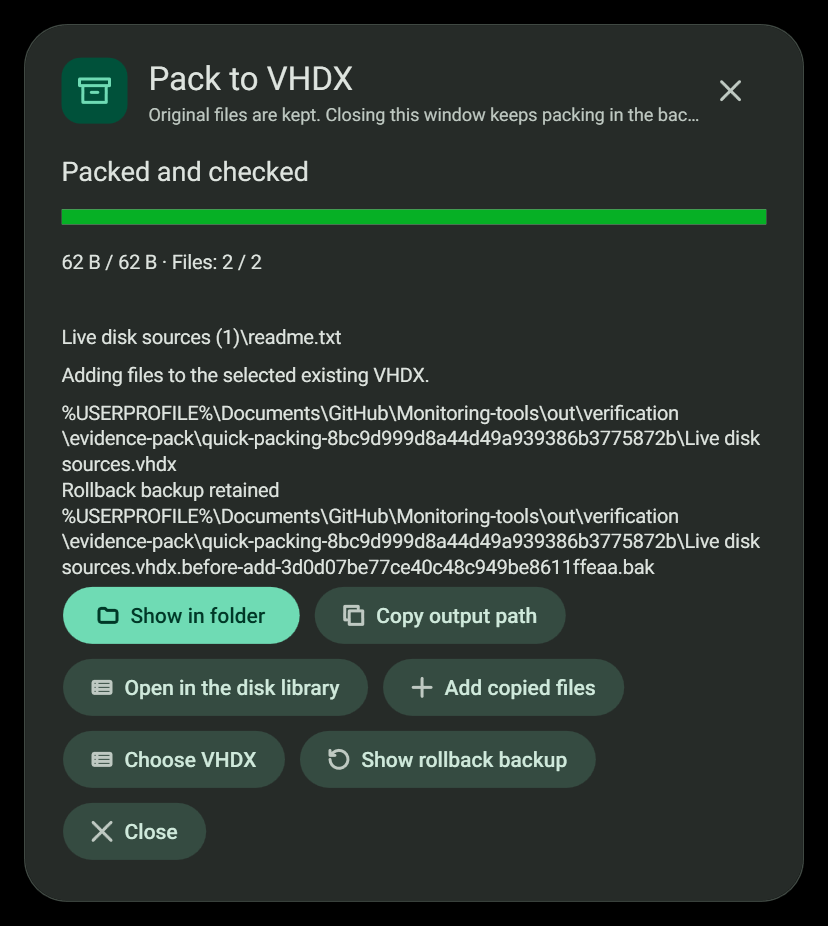
The live dialog dismisses immediately after verified success. This genuine built-application capture shows the retained result reopened afterward, with the target and rollback backup.
The add route supports a detached local dynamic VHDX with one healthy GPT/NTFS data partition. Mounted disks, network drives, paths through directory links and unsupported layouts are rejected. Existing user content containing links is rejected rather than silently omitted.
The original disk stays untouched while the application copies it into a sibling staging folder. It validates the staged copy, attaches that copy without creating or formatting partitions, hashes existing user files, copies and verifies the additions, checks existing contents again and detaches. Incoming top-level file and folder names are numbered when they collide. Existing folders are not merged and existing files are not overwritten.
Only then does the application revalidate and atomically replace the detached target. A uniquely named .before-add-....bak rollback copy remains beside it, and Activity/result actions expose it. Allow space for both the original and staged disk plus the additions. Cancellation or failure before replacement leaves the original unchanged. If another writer changes the disk at the final replacement boundary, both versions are retained and the result reports incomplete recovery; this route does not claim filesystem compare-and-swap.
To recover an earlier version, first preserve and detach the updated disk. Copy the retained backup to a new .vhdx filename and inspect that copy through Virtual disks. Keep both versions until the required contents are verified; do not overwrite an active or mounted disk.
#Related
View this article's Markdown source on GitHub
Suggested articles
Virtual disks
The Virtual disks page in the control centre manages VHD, VHDX and VHD Set files and attaches ISO images. It works
Read itFile tools
When you copy several files, the toast offers the file tools sheet with one tab each for move and copy, Base64, and encryption.
Read itDocker actions
Copy a Compose file or a Dockerfile and the toast offers buttons for it.
Read itData and security tools
Five dialogs, each its own window, open from the clipboard notice when the copied file is of the right kind. They never run, open or move the file they inspect, and they never change it unless the…
Read it