Clipboard
Clipboard power features
Shortcuts and small windows that make copying and pasting faster: clipboard history with previews, plain text paste, undo, the paste queue, pins, collect mode, typing instead of pasting, snippets, recipes and per-app rules.
#Clipboard history
Press Win+Shift+V (Windows keeps Win+V for its own history).
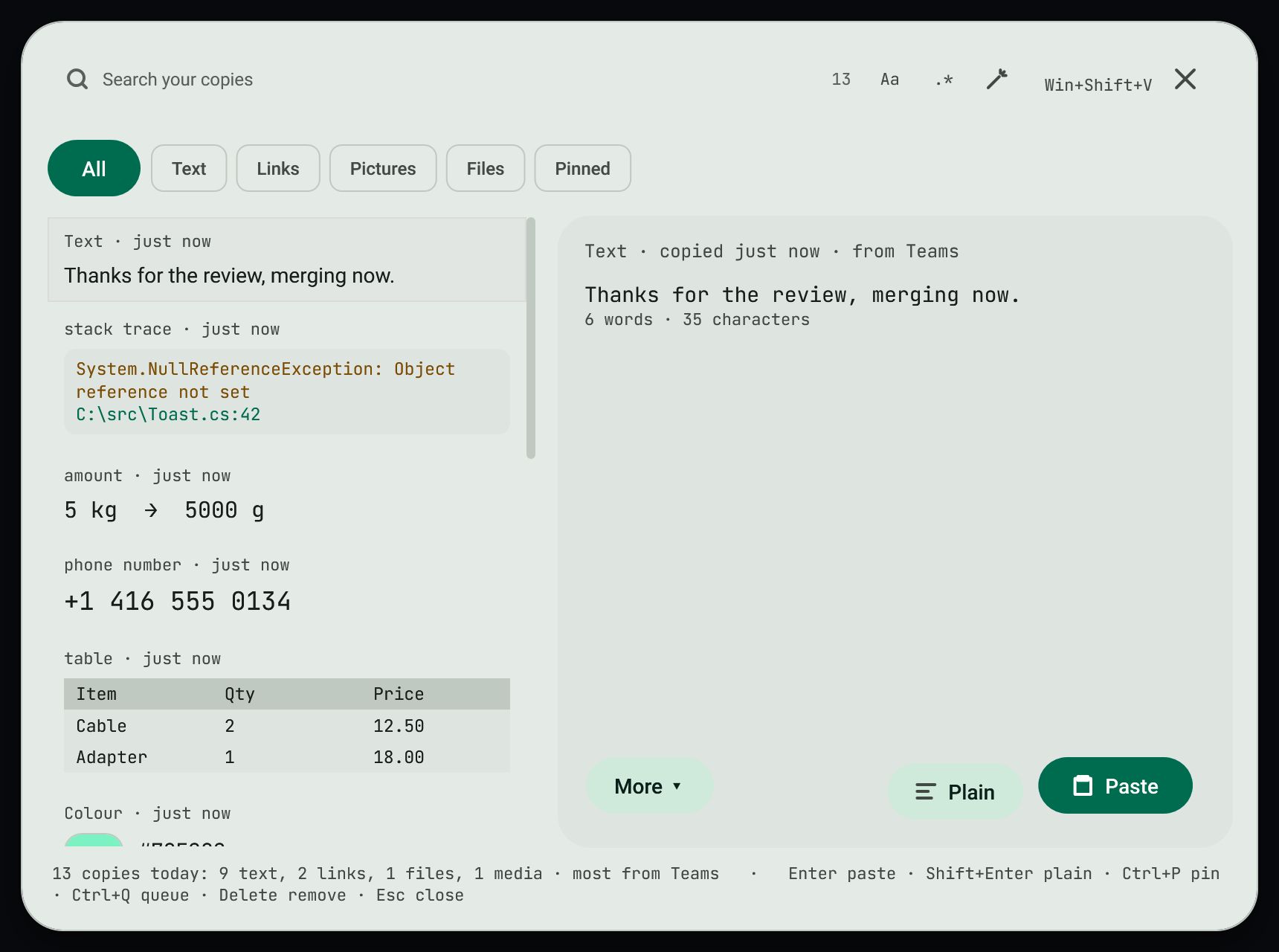
- Every row previews what it is: a link card, a picture or file thumbnail with its type and size, a mini table, a colour swatch, a tidy phone number, a stack trace.
- The copy you pick shows large on the right, with its recognised values.
- Type to search, including the kind and the app it came from.
.*switches to a regular expression and Builder builds one; see Search bars. - The kind chips show only text, links, pictures, files or pinned copies.
| Key | Does |
|---|---|
Enter | Pastes into the app you were in |
Shift+Enter | Pastes as plain text |
Ctrl+P | Pins the copy to the top of the list |
Ctrl+Q | Adds it to the paste queue |
Delete | Removes it from history |
Esc | Closes |
More has the same actions plus Pin on screen, Copy without pasting and Open the History page.
#Paste as plain text
Ctrl+Shift+Alt+V pastes what you copied without its fonts, colours or links.
#Undo the clipboard
Ctrl+Shift+Alt+Z puts back what was on the clipboard before your last copy: text, files or a picture.
#Paste queue
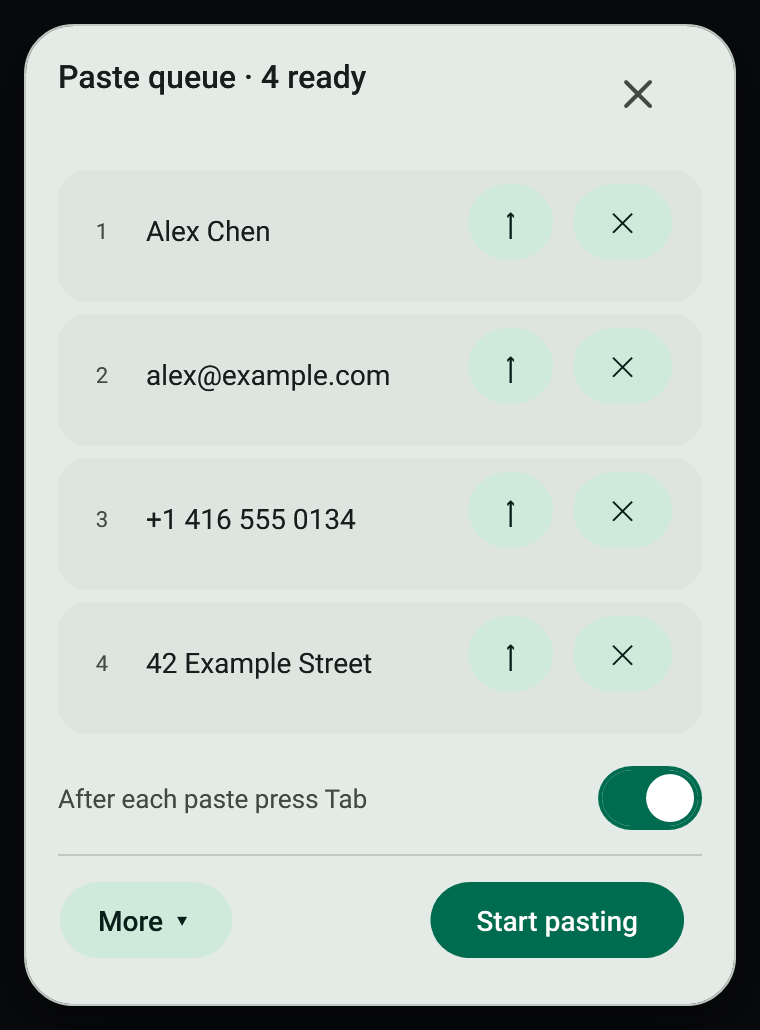
- Press
Ctrl+Shift+Alt+Q, or choose Paste queue in the command palette. - Copy several things. They join the queue in order instead of showing a toast.
- Press Start pasting. Each
Ctrl+Vnow pastes the next one. With After each paste press Tab on, the next field is ready straight away. - Use ↑ to move an item up and ✕ to remove it. More reverses the order, clears the queue or copies everything as one note.
#Pin on screen
Pin on screen on a toast, in history, or Ctrl+Shift+Alt+P for the newest copy, keeps text, a table or a picture on top of every window.
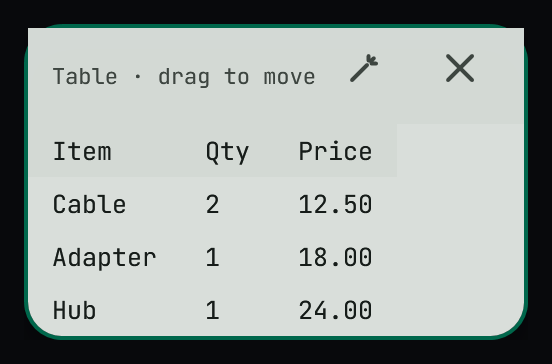
Drag it by its top bar. The options button sets how see-through it is and lets clicks pass through to the app below. Ctrl+C copies it again; Esc or ✕ unpins it.
#Collect mode
Ctrl+Shift+Alt+A starts collecting: every copy is added to one growing note. Press it again to put the whole note on the clipboard.
#Type it instead of pasting
Ctrl+Shift+Alt+T types what you copied as key presses, for sites and apps that block pasting. It types up to 5,000 characters.
#Snippets
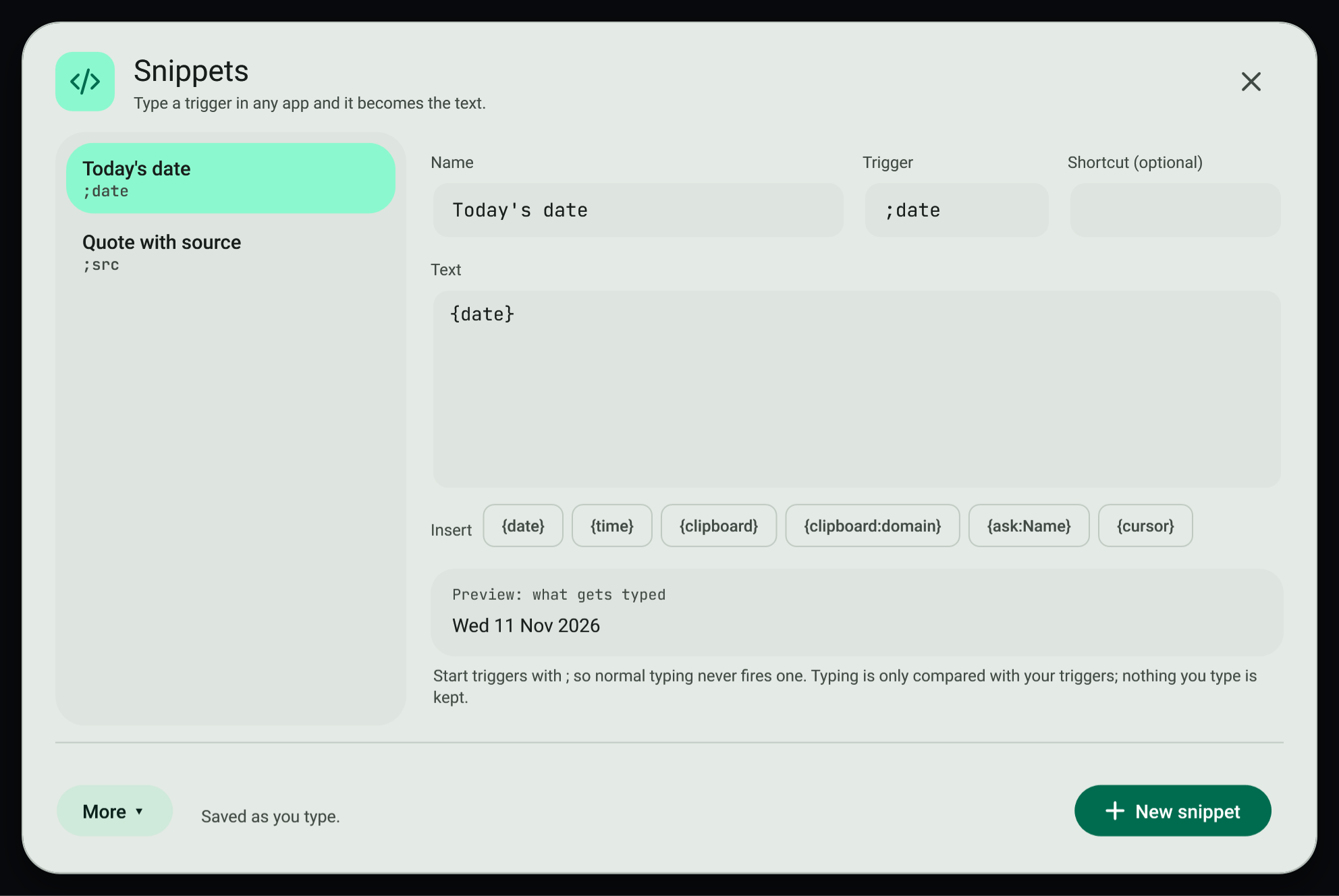
Type a snippet's trigger in any app and it is replaced with the snippet's text. Open Snippets from the command palette or Clipboard settings.
- New snippet (
Ctrl+N), then give it a name, a trigger such as;sig, and its text. A shortcut is optional. - The Insert buttons add fill-ins:
{date},{time},{clipboard},{clipboard:domain},{ask:Name}(asks you when it is used) and{cursor}(where the cursor ends up). - The preview shows exactly what will be typed. Changes save as you type.
Only your triggers are compared with what you type. Nothing you type is kept, and the keyboard watcher runs only while you have snippets.
#Transform recipes
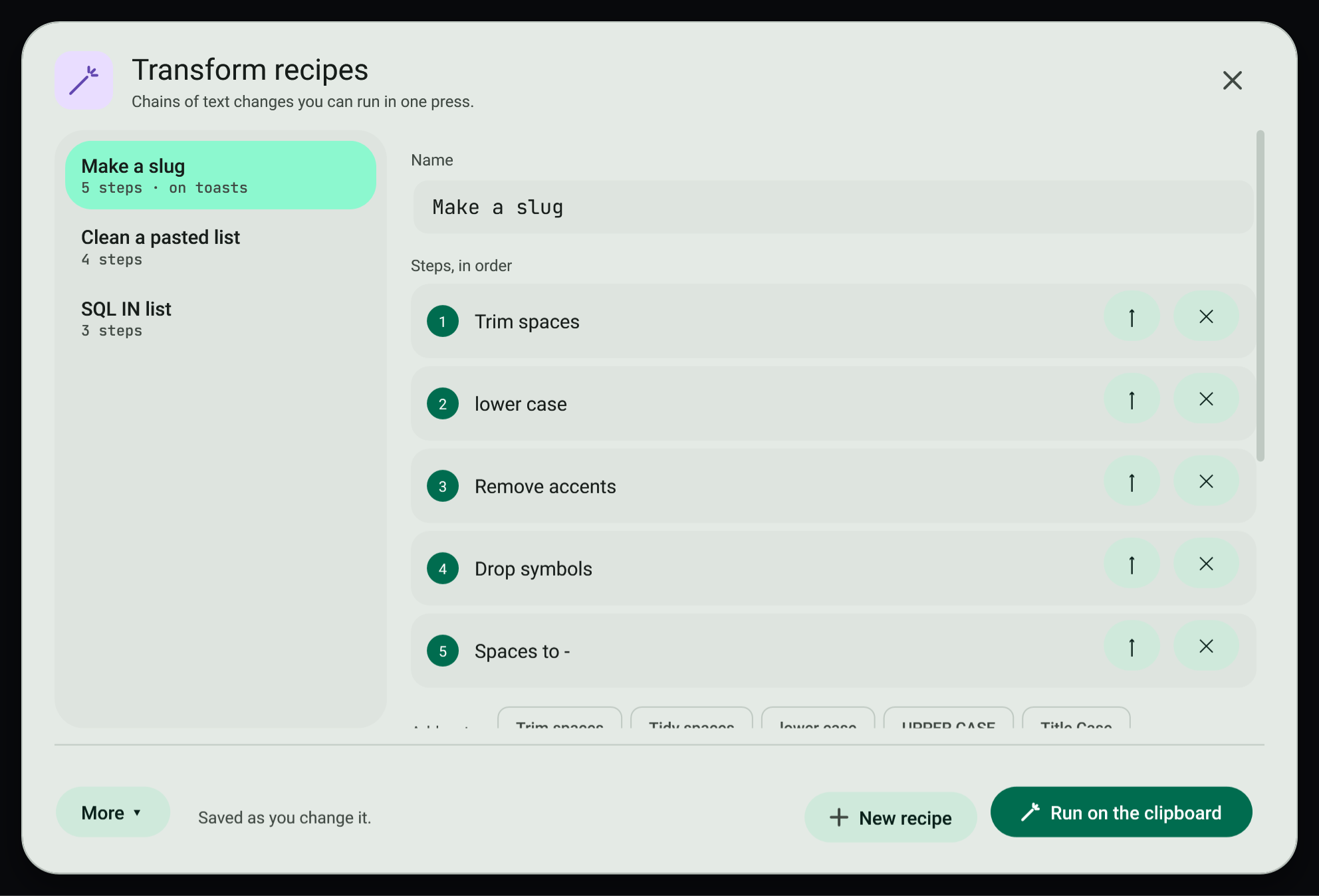
A recipe is a chain of text changes, such as trim, lower case, remove accents and spaces to dashes, which makes a slug. Add steps from the palette, move them with ↑ and remove them with ✕. The result shows live on what you copied. Show on text toasts adds the recipe as a button whenever you copy text; Run on the clipboard (Ctrl+Enter) changes what is on the clipboard now.
#Per-app rules
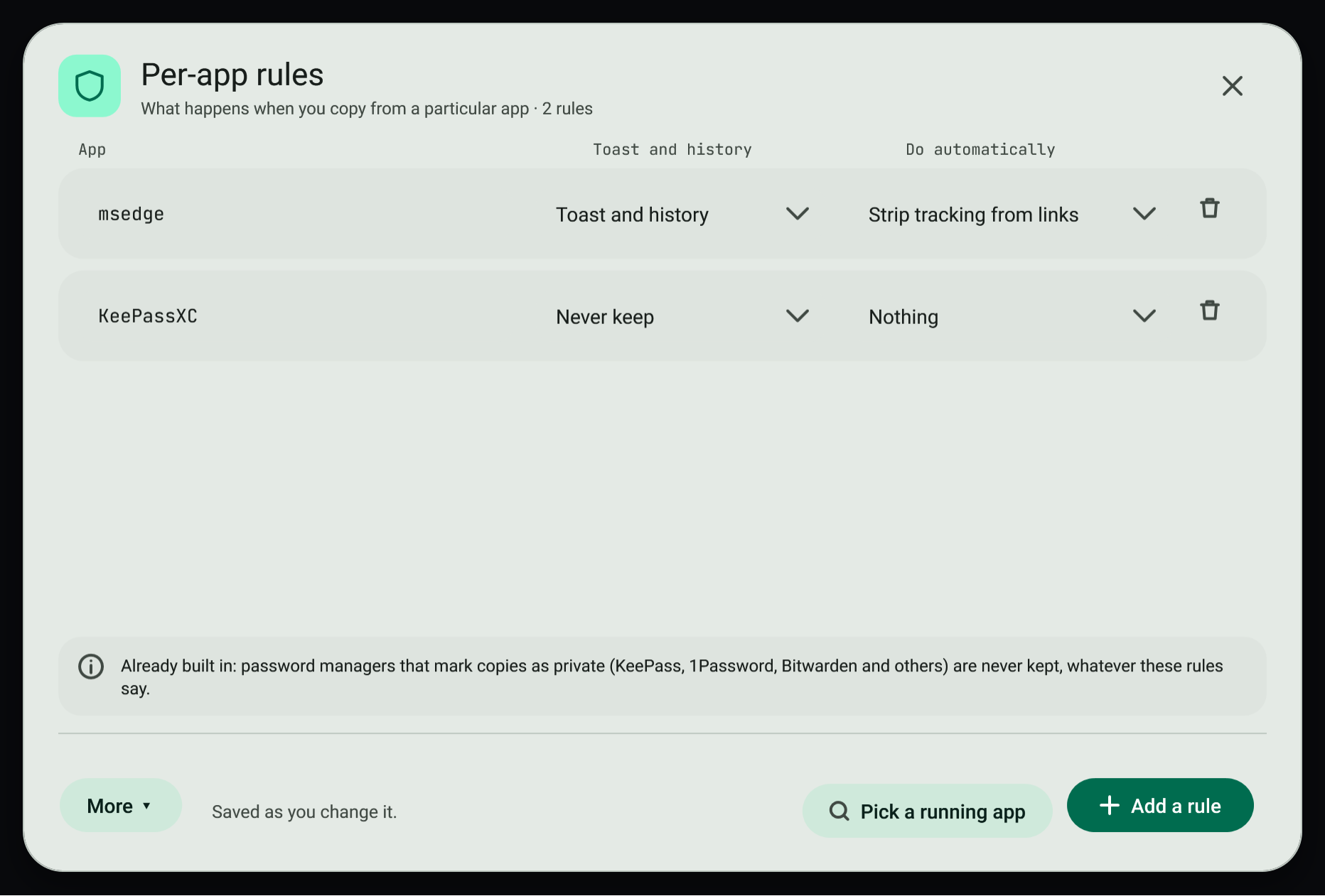
Choose what happens to copies from a particular app:
- Toast and history, History only, no toast, or Never keep.
- One automatic action: Strip tracking from links, Keep as plain text, Clear after 30 s or Open tables as a table.
Pick a running app (Ctrl+P) lists the apps that have a window open. Password managers that mark their copies as private are never kept, whatever the rules say.
#Text in pictures, and blurring before you share
When you copy a picture, the toast offers Read the text and Blur private details.
- Read the text opens the picture with every line of text it found outlined. Tap lines to choose them, then Copy. A QR code in the picture is read too, with Open the link for web links. Recognition uses Windows' own text recognition in your Windows language, on this PC.
- Blur private details (also
Ctrl+Bin that window) pixelates email addresses, long numbers, phone numbers, bank numbers and faces, and puts the blurred copy on the clipboard. Check the result before you share it: recognition can miss things.
#Today at a glance
The foot of the history window shows how many copies you made today, how many were text, links, files and media, and which app you copied from most.
#Ask your local AI
Text toasts offer Explain with your local AI, and for longer text Summarise and Rewrite more simply. They use the first model installed in Ollama on this PC; see Ollama. Nothing is sent anywhere else.
#Clipboard settings
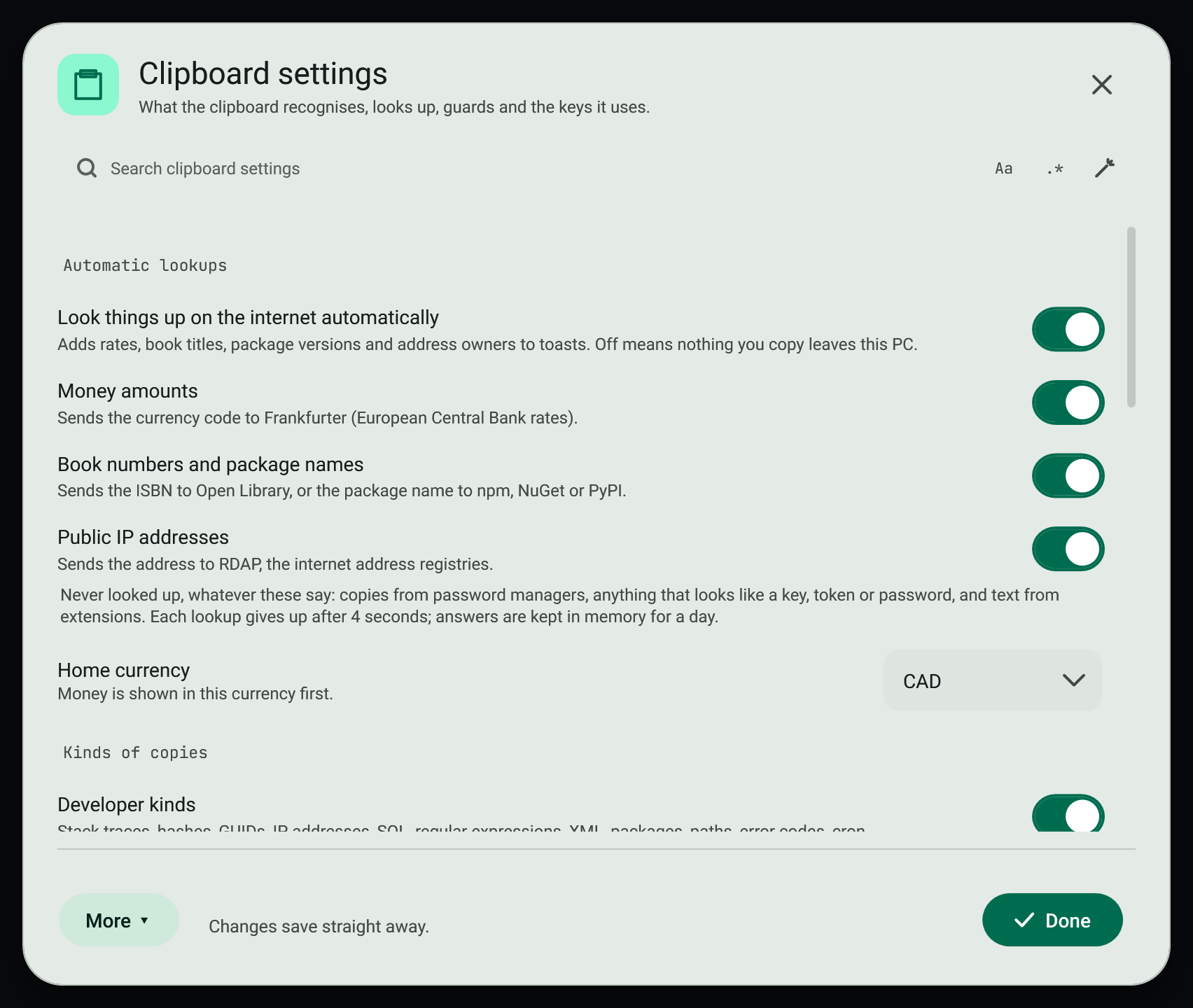
Open Clipboard settings from the command palette. Search it, then:
- choose what automatic lookups may send, and your home currency
- turn kinds of copies, the secret guard, extensions and snippets on or off
- click a shortcut box and press new keys; Backspace removes the shortcut
A shortcut another app already uses is listed so you can pick another.
#Related
View this article's Markdown source on GitHub
Suggested articles
- Search
Search bars
Each field keeps its own query, mode, case, regex options, replacement, test sample and recent patterns. Typing in one never changes another. The state lives in memory while the app runs; only…
Read it Smart copies
When you copy text that the app recognises, the toast says what it is, shows the useful versions of it as tiles you tap to copy, and offers the buttons that make sense for that kind.
Read itQuick conversions
Copy an amount and see it in every unit of its kind at once. Click any result to copy it.
Read itClipboard history
The control centre keeps every copy in a local Git repository, one commit per copy, so you can find anything you ever copied.
Read it