Clipboard
Clipboard history
The control centre keeps every copy in a local Git repository, one commit per copy, so you can find anything you ever copied.
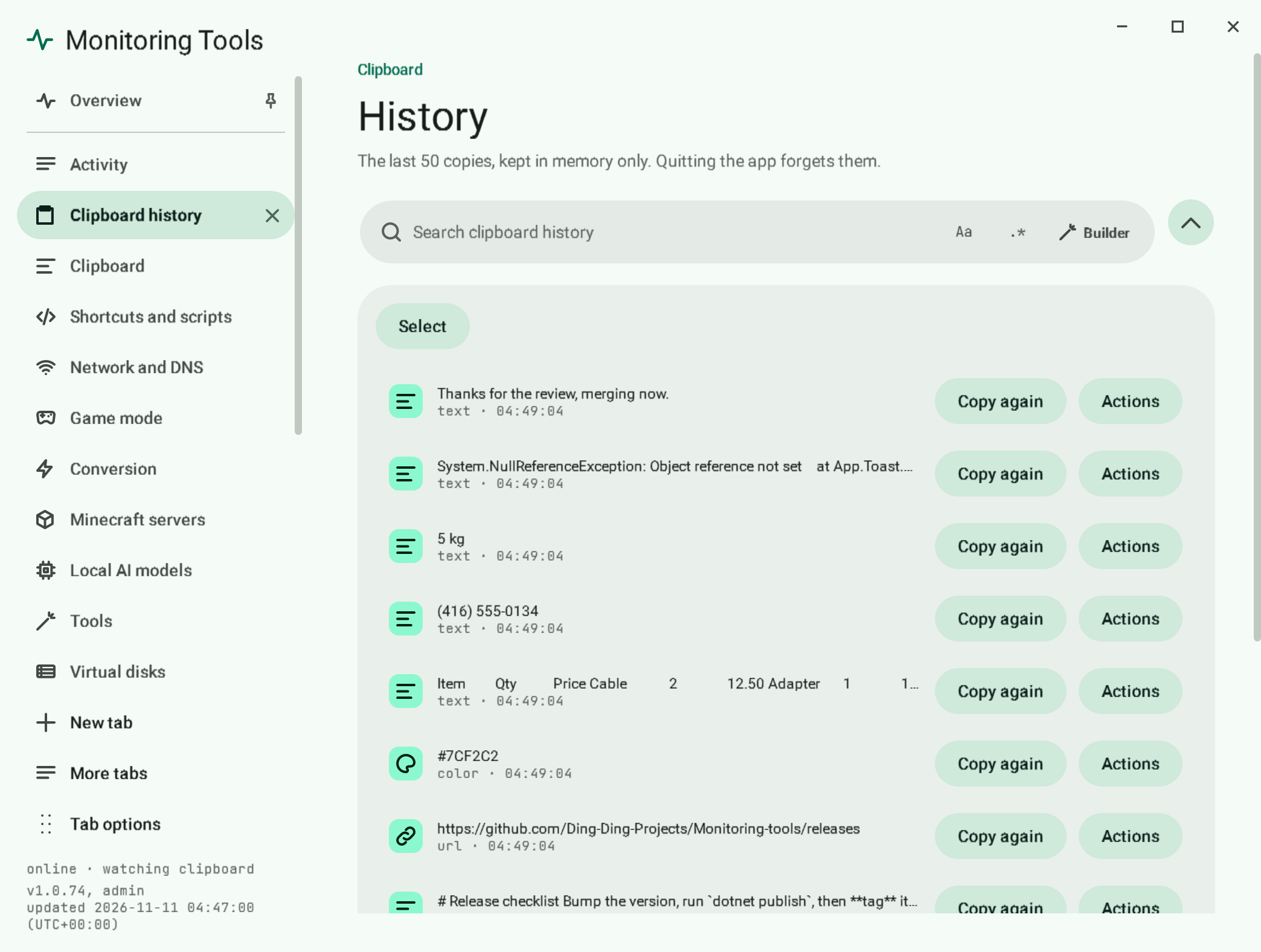
#Every copy, in a Git repository
The history is a local Git repository, so nothing is ever dropped:
- Each copy is written as its own file under
entries/yyyy/MM/dd/and committed at once. Text is.txt, Markdown.md, JSON.json, a file copy lists its paths in.files.txt, an image is.png, a sound.wav. - Editing a copy in its toast writes the new text over the same file, so every earlier version is one commit back.
- Pinning, unpinning and removing are commits too.
index.jsonllists every copy, one line each. - Commit messages never hold the copied text, only its kind, size and source app, for example
Copy url, 36 characters from msedge. - The repository lives in the app's data folder (
%LOCALAPPDATA%\MonitoringTools\clipboard-history) unless you choose another folder. It has no remote, and the app never pushes it.
Recent copies in memory (the History size setting) only decides how many copies the toasts and the Overview keep at hand; the repository keeps all of them.
#The history manager
Open the control centre and choose History.
- Status: whether every copy is being recorded, the folder, the number of copies and commits, the size on disk, the time of the last commit and any problem. Pause recording, Open folder, Copy path, Change folder… and Forget removed copies for good… sit under it, with the Keep secrets too switch.
- All copies: a search bar that reaches every copy (plain text by default,
.*for a regex), filters by kind (Text, Links, Code and JSON, Colours, Files, Images and sound, each with its count), by time (Today, 7 days, 30 days, All time), Pinned only, and Newest first or Oldest first. Pinned copies always lead. Rows come 200 at a time with Show 200 more. - Each row shows the kind, the time, the source app, the size and whether it is pinned or edited, with Copy again, Pin and More. More opens the whole copy (with a swatch for each colour in it), its file in the repository, its versions with Copy this version, and Remove from history….
- Select turns on select mode: Select all shown, Select all matching (every copy the filters match, not only the ones shown), Select none, Copy, Pin, Unpin, Export… (plain text or JSON lines) and Remove….
- Latest commits lists the ten newest commits.
Ctrl+F jumps straight to the page's search.
#Removing for good
Remove takes copies out of the current tree in one commit; Git still has them in earlier commits. Forget removed copies for good… rewrites the repository to a single commit of what is kept today and garbage-collects the rest, so removed copies, and the older versions of edited copies, are gone from disk. It asks first and cannot be undone.
#Privacy
- Copies that password managers mark as private never reach the history.
- Copies the app recognises as secrets (passwords, keys, tokens) stay out of the repository unless Keep secrets too is on.
- With history protection on (Safety › history protection: Windows or a password), new copies and their previews are written encrypted with AES-256-GCM. A password-protected history waits, and commits the waiting copies, once it is unlocked. Copies written before protection was turned on stay as they were.
- Pause recording stops new commits without changing anything already kept. Turning off Keep every copy in a Git repository in the Clipboard settings goes back to a memory-only history.
#Related
View this article's Markdown source on GitHub
Suggested articles
Clipboard toasts
A small card slides into the bottom-right corner each time the clipboard changes. It stays for 3 seconds and holds while the pointer is over it.
Read it- Search
Search bars
Each field keeps its own query, mode, case, regex options, replacement, test sample and recent patterns. Typing in one never changes another. The state lives in memory while the app runs; only…
Read it - The app itself
Command palette
Press Ctrl+Shift+F to jump to any page, any setting or any action.
Read it Smart copies
When you copy text that the app recognises, the toast says what it is, shows the useful versions of it as tiles you tap to copy, and offers the buttons that make sense for that kind.
Read it