The app itself
Service and tray
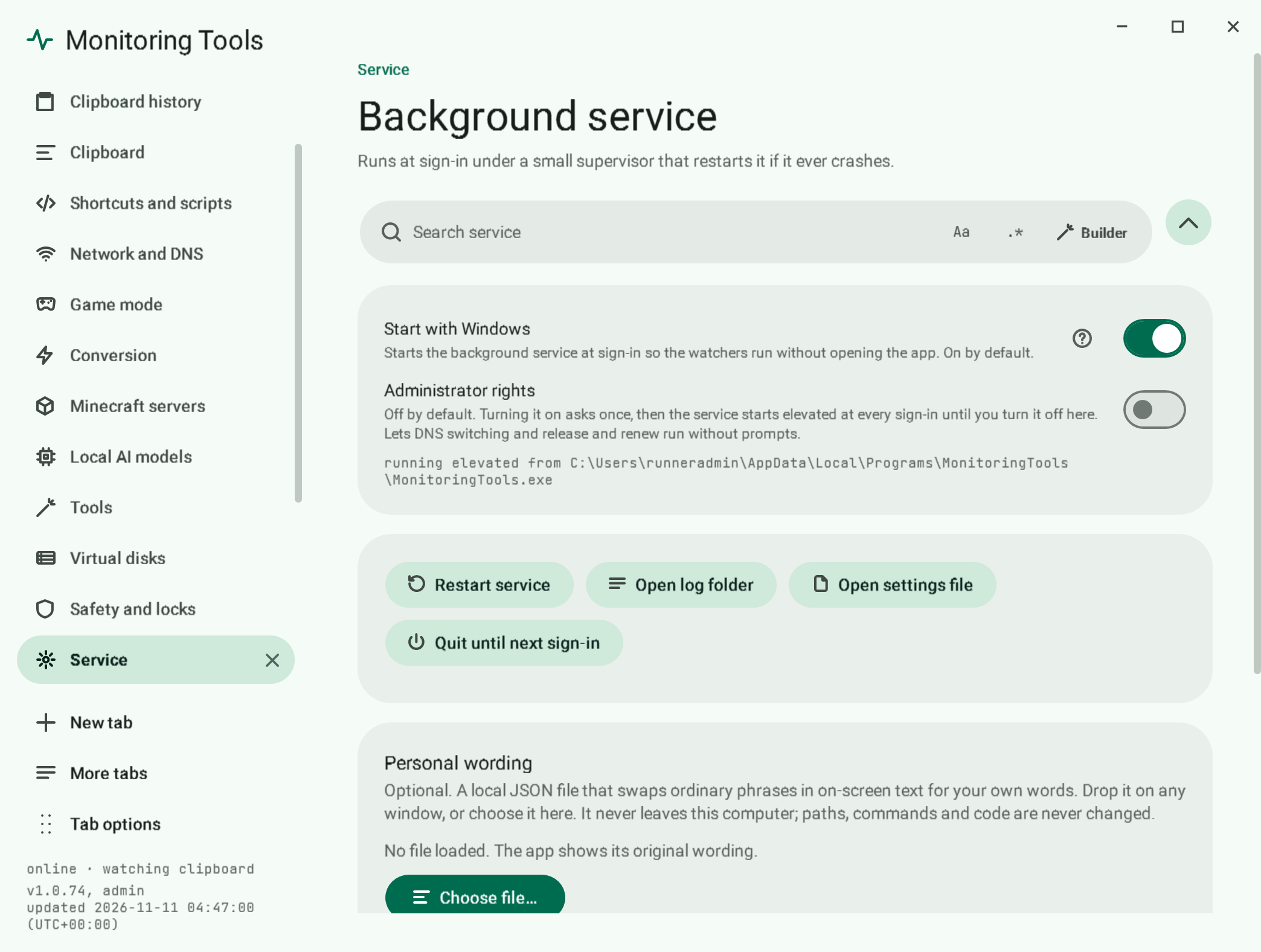
Monitoring Tools installs per user, starts at sign-in and runs under a supervisor that restarts it after a crash.
#The tray icon
The dot shows the state: mint online, amber offline, violet game mode, grey paused.
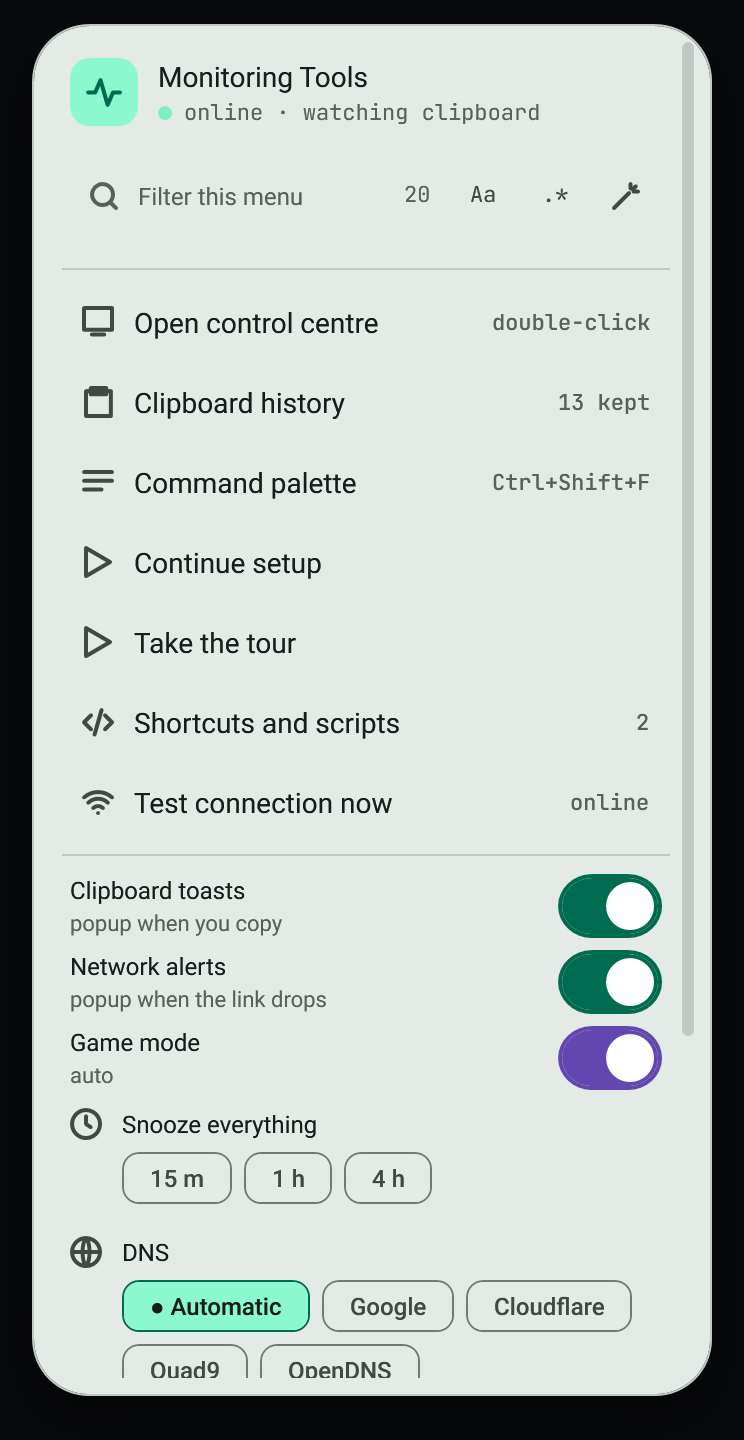
Right-click for the control centre, history, shortcuts, connection test, toggles, snooze, DNS, administrator rights, restart, logs, uninstall and quit.
#Administrator rights
Off by default. Turning them on asks once through UAC, then the service starts elevated at every sign-in until you turn it off. Things that need it, such as changing DNS, then run without a prompt.
#Dropping files while running as administrator
Windows does not let a normal-rights program (File Explorer, the desktop) drag and drop into an elevated program, so without help every drop zone would ignore files while administrator rights are on. The app works around it: each window allows the older WM_DROPFILES message through the Windows message filter, accepts dropped files that way, and hands them to the drop zone under the pointer exactly as a normal drop would (it lights up, can refuse, and receives the files). Dragging tabs inside the app keeps working.
Only files cross over this way. Text or images dragged from another program (a browser selection, say) cannot reach an elevated window; copy and paste them instead, or turn administrator rights off.
#Updates install themselves
On by default (About, Install updates by themselves). A little after the service starts, and then every hour, it asks GitHub for the latest release. A newer one is downloaded in the background into %LOCALAPPDATA%\MonitoringTools\updates. It is kept only when its SHA-256 matches the digest GitHub publishes for the file and the file's own version matches the release; otherwise it is thrown away and the About page says why. Drafts and pre-releases are ignored.
It then waits for a quiet moment: no conversion running, no Minecraft server started from this app running as a local process (its console belongs to the service), and no game being played. A game only counts while someone is using the computer: after 10 minutes without keyboard or mouse input, a game client left open no longer holds the update back. At that moment it runs the downloaded file with --update-install, which stops the service, replaces the installed exe and starts the service again by itself, in the same mode (with or without administrator rights). The swap takes a few seconds and needs no restart, sign-out or click. If the copy fails, the previous version starts again. The new version shows a short notice naming the versions it updated from and to.
Check now looks at once and installs straight away when it is a quiet moment. A development build never installs over itself.
#Where things live
The program is in %LOCALAPPDATA%\Programs\MonitoringTools. Settings, logs and scripts are in %LOCALAPPDATA%\MonitoringTools.
#Personal wording
Optional. A local JSON file can swap ordinary phrases in on-screen text for your own words. It never leaves this computer, and paths, commands and code are never changed.
There are three ways to load one, and all three use the same checks and the same celebration:
- Drop the file on any window.
- Choose it on the Service page.
- Copy it: copy the file in Explorer, or copy its full path as text. The app checks the copied file and, if it is a valid wording file, applies it at once with the success sound. A copied JSON file that is not a wording file (a
package.json, say) is left alone and shows the ordinary clipboard toast. A wording file that fails a check plays the refusal sound and says why. Turn this off with Apply a copied wording file on the Service page (default: on).
File format: {"schemaVersion": 1, "entries": {"ordinary phrase": "your words"}}, up to 256 KiB. School mode keeps personal wording off, whichever route is used. Clear and restore original wording removes it.
#Uninstall
Right-click the tray icon and choose Uninstall service. It stops the service, removes start-up and deletes the program.
#Related
View this article's Markdown source on GitHub
Suggested articles
Command palette
Press Ctrl+Shift+F to jump to any page, any setting or any action.
Read it- Network
DNS profiles
Switch between Automatic, Google, Cloudflare, Quad9, OpenDNS or your own saved servers.
Read it Element menu
Right-click an element, or focus it and press Shift+F10 or the Menu key, to get a menu for that exact element. It has its own filter field with the regex builder, shows each item's shortcut and is…
Read itMaterial 3 Expressive windows
Every secondary window follows the same Material 3 Expressive treatment as the control centre, so the Appearance theme (light or dark, seed colours) repaints all of them.
Read it