Submodules — little projects inside your project
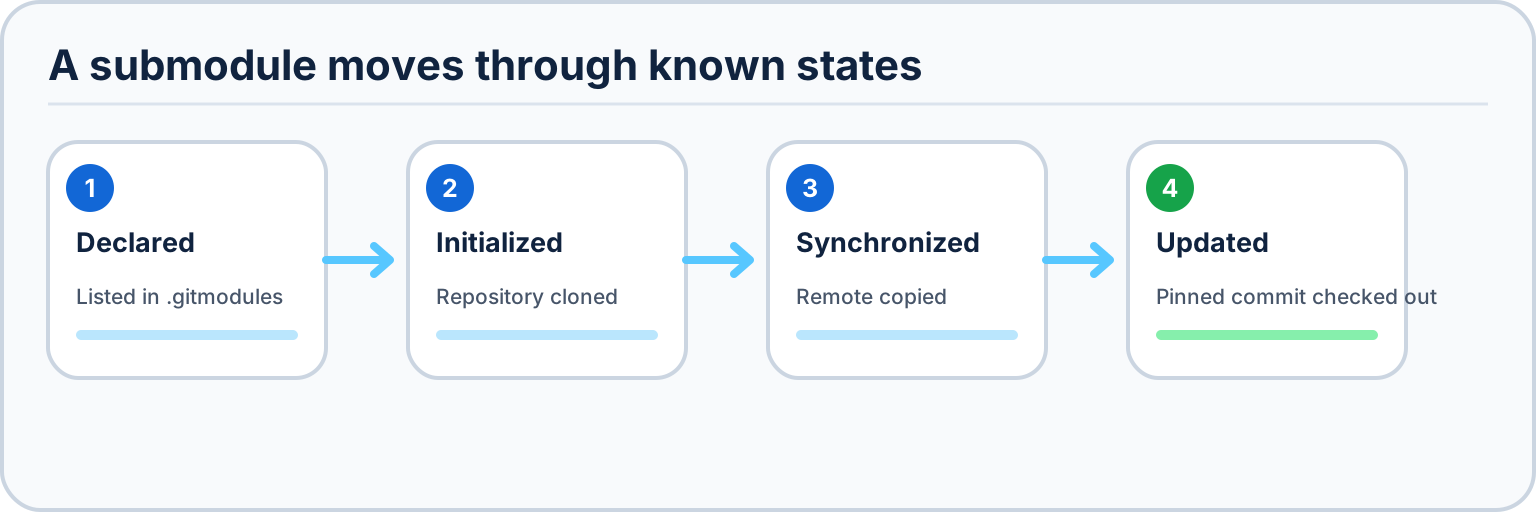
This is the simplest page in the wiki. On purpose.
Some repositories keep other repositories inside them. Git calls the inside ones submodules. That word sounds hard. The idea is not. This page explains it with toy boxes, then shows every submodule button Desktop Material has.
What is a submodule?
Think of your repository as a big toy box. Your files are the toys inside.
A submodule is a smaller toy box that sits inside the big one. The small box is special: it has its own label and its own inventory list (its own name, its own history, its own home on the internet). The big box does not own the small box's toys. It just gives the small box a place to sit.
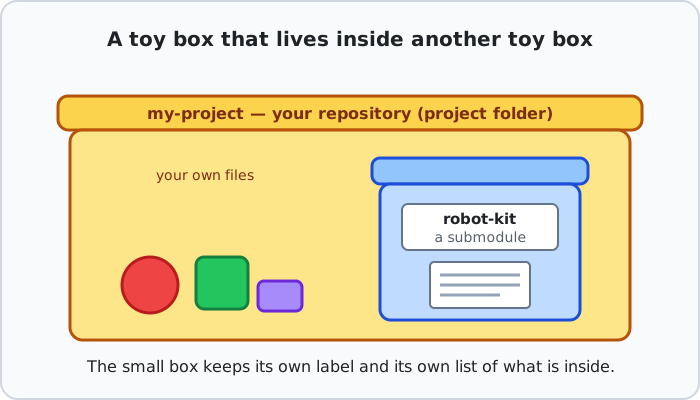
Why do people do this? So many big boxes can share one small box. If ten projects need the same robot kit, nobody has to copy it ten times. Each project just says: "the robot kit lives here."
The bookmark rule
Here is the one rule that explains almost everything about submodules:
The big box remembers one exact version of the small box. Not "the newest one." One exact, frozen version — like a bookmark stuck on one page (Git calls that exact version a commit).
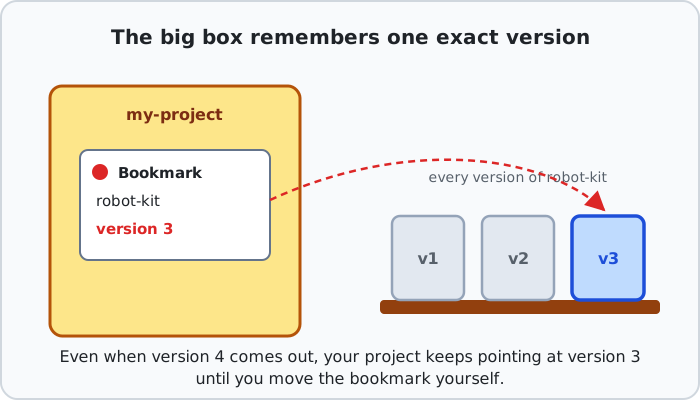
If the robot kit gets a shiny version 4 tomorrow, your project still uses version 3. That is a feature, not a bug: your project keeps working exactly the way you tested it. When you are ready for version 4, you move the bookmark on purpose and commit that change like any other.
See which repos have submodules before you clone
Clone means "download a repository to your computer." Before you download anything, Desktop Material warns you when a repository has boxes inside.
- Open the clone window (File → Clone repository…).
- Look at the repository list. A repository with submodules shows a small blue number badge on its row. The number is how many boxes are inside.
- Click the badge. A Repository submodules window opens and lists every inside box — its folder, its branch, and where it comes from. Nothing downloads yet. You are only peeking.
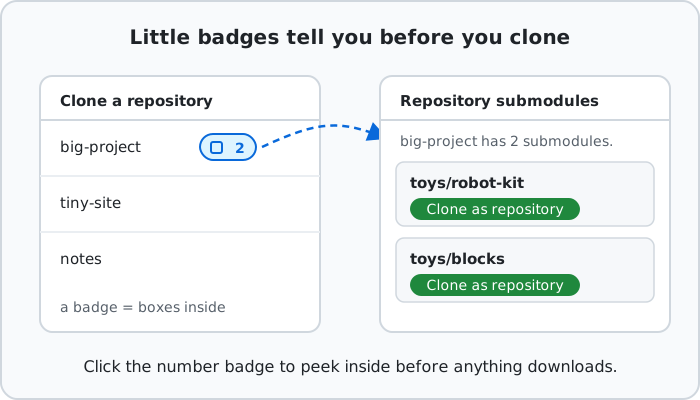
If you clone the big repository normally, Desktop Material fetches the small boxes too (it clones recursively — meaning boxes inside boxes come along). So most of the time you never have to think about any of this.
Clone a submodule as its own project
Sometimes you only want the small box. Not the big one around it.
In that same Repository submodules window, every listed submodule has a Clone as repository button. Press it and Desktop Material downloads just that one box as a normal, complete repository — its own folder, its own tab, its own history. It does not need its parent at all.
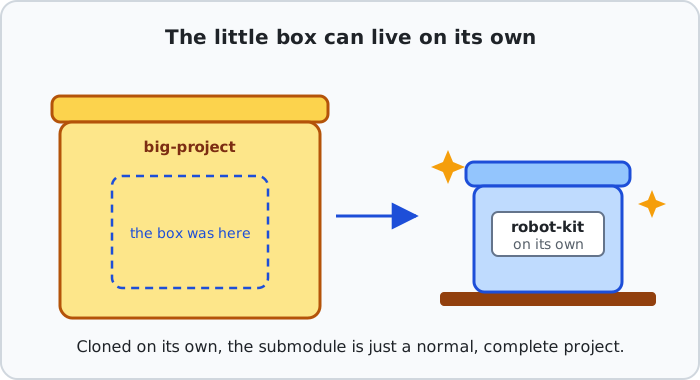
Remember: a submodule is a real repository. Living inside another project was just one of its jobs.
Open the Submodule Manager
Once a repository with submodules is on your computer, one window manages all of its boxes: the Submodule manager.
- Open the repository, then choose the Tools tab in
the left rail (or View → Repository tools,
Ctrl+4). - Find the Nested repositories category and press Open submodule manager. (The same list also lives in Repository settings → Submodules.)
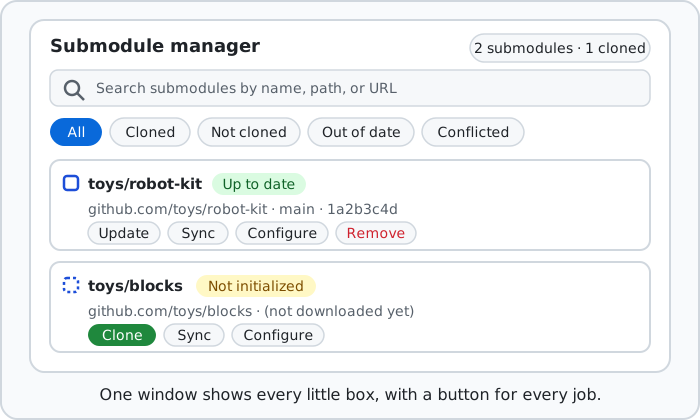
What you see:
- Counter chips at the top: how many submodules there are, and how many are cloned.
- A search box that matches names, paths, or URLs. It has the same substring/regex powers as every other search — see the Regex Guide.
- Status chips — All, Cloned, Not cloned, Out of date, Conflicted — to show only the boxes in that state.
- One row per submodule with a status pill and buttons.
The status pills, in toy terms:
| Pill | What it means |
|---|---|
| Not initialized | The box is on the list but not unpacked yet. Nothing is downloaded. |
| Up to date | The box holds exactly what the bookmark asks for. All good. |
| Out of date | The box's contents do not match the bookmark. Press Update. |
| Conflicted | Two changes disagree about which version to use. Finish the merge first. |
Each row offers Clone (for a box that is not downloaded) or Update, plus Sync, Configure, and Remove. A downloaded row also offers Open temporary viewer. The header adds Add submodule… and Update all, which clones and updates every box in one go.
Open a submodule without adding another saved repository
Press Open temporary viewer on a downloaded submodule—or use the same action on a changed/new submodule commit card—to inspect the small box with the normal Changes, History, branch, and read-only repository tools. Desktop Material opens it only for the current workspace visit:
- it does not add the submodule to the repository list;
- it does not add it to Recent;
- it does not replace the saved last-selected repository; and
- it does not make a second imported copy of the project.
A context bar names the submodule and the big box that opened it. Press the obvious Close viewer action or its Back to parent control to return to that saved root repository and clear the temporary viewer. If you open a box inside another box, Back still returns to the original saved root rather than leaving a trail of temporary repository entries. If you click Open temporary viewer, Close viewer, or Back to parent twice by accident, Desktop Material treats it as one trip: it does not add another tab or saved repository entry.
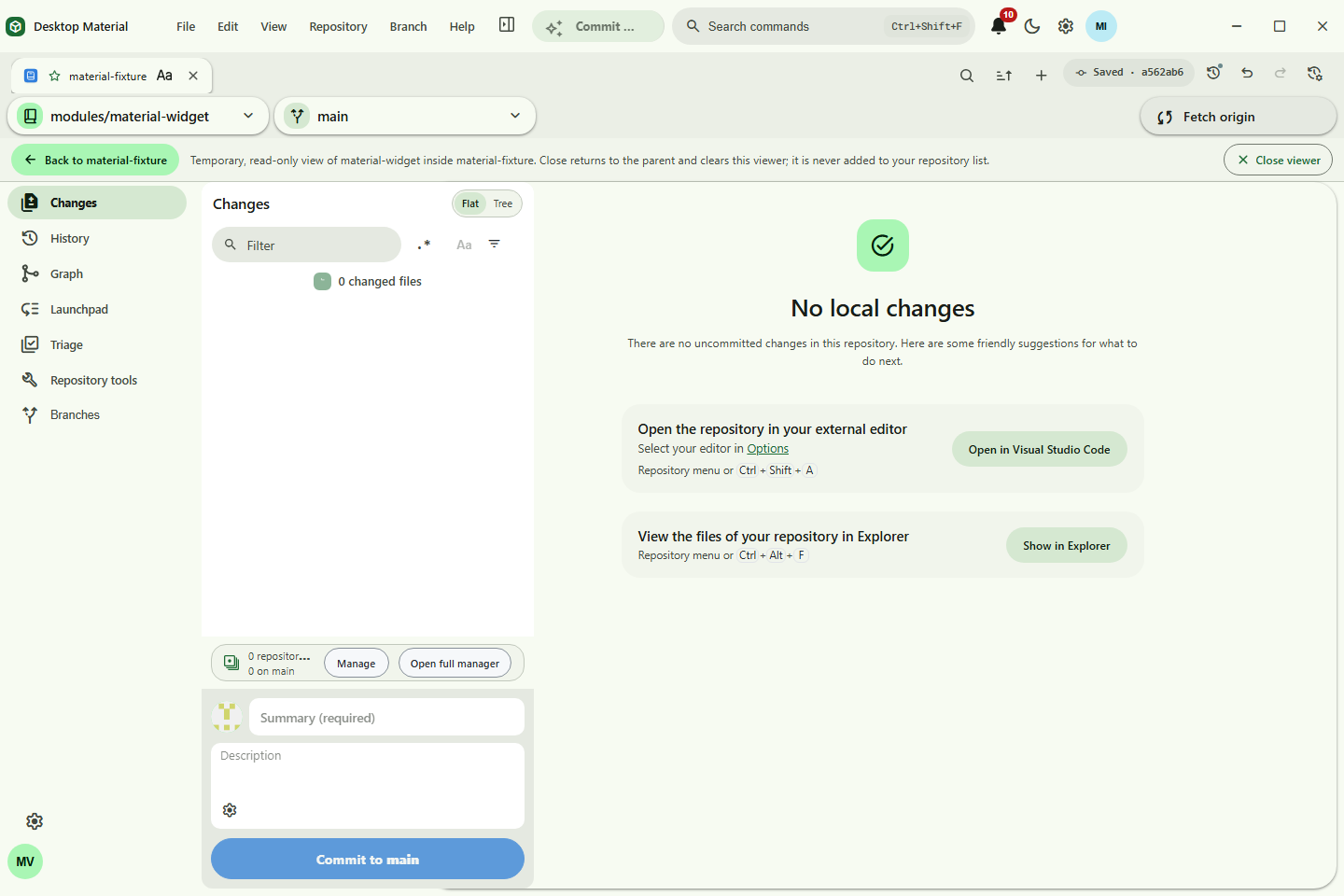
The button on a not-yet-downloaded row stays disabled and explains that the submodule must be cloned or initialized first. If an initial target moved, stopped being a Git worktree, or resolves outside the parent through a tricky path or link, the manager stays open and shows an error; nothing is added to the saved repository list. If a child becomes unsafe after it is already open, Desktop Material clears that temporary context, returns to the saved root, and shows a localized error instead of continuing to use the stale worktree.
Shift+right-click the actual Back control, or focus it
and press the Context Menu key or Shift+F10, to open that
element's editor beside it. You can make it Tonal,
Filled accent, or Outlined, and label
it Back to parent, with the parent name, or as an icon
only. The icon-only choice still has an accessible name that says where
it goes. Repository Settings shows the same Back preview;
Shift+right-clicking that preview opens the same anchored
editor, but its changes are staged until you press
Save. The general Appearance page keeps only the
ordinary language, theme, scale, and layout preferences. The Back owner
has its own local Git repository and History action;
undo, redo, and restore affect only its style and label and append audit
commits.
Temporary mode is intentionally inspection-first. Repository Tools remains available for safe reading, while branch/tag/stash/history rewrites, remotes, worktrees, nested-repository mutation, automation, shell/editor launch, and separate-window actions stay disabled or fail closed until you return to the saved root. Back also cancels or fences delayed child refreshes so stale results cannot replace the root workspace.
Change where a submodule comes from
Every small box has an address tag: the internet URL it is fetched from. To edit it, press Configure on the submodule's row.
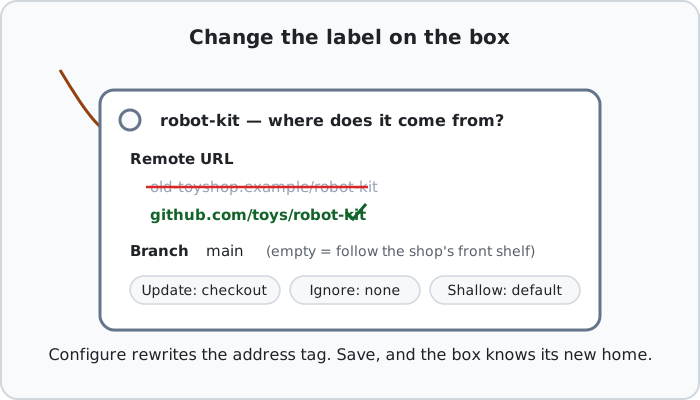
The Configure window has a small set of clearly named fields:
- Remote URL — the box's home address. Saving a new one also copies it into the checked-out box, so the change works right away.
- Branch — which line of work to follow. Leave it empty to follow the project's default branch (its front shelf).
- Update strategy — how new toys are placed in the
box when you update (
checkoutis the normal choice;rebase,merge, andnoneare for special setups). - Ignore dirty state — how loudly Git mentions small messes inside the box when it reports status.
- Fetch recurse submodules — whether fetching the big box also fetches news for this small box.
- Shallow clone — bring only recent history, so the box downloads faster and weighs less.
Every dropdown has a Use default choice. Picking it erases your override so Git's normal behavior applies again. Save changes writes only the fields you actually changed. The same window also holds the Sync, Init, and Deinit… helpers described below.
Add a new submodule
Want to put another small box inside your project?
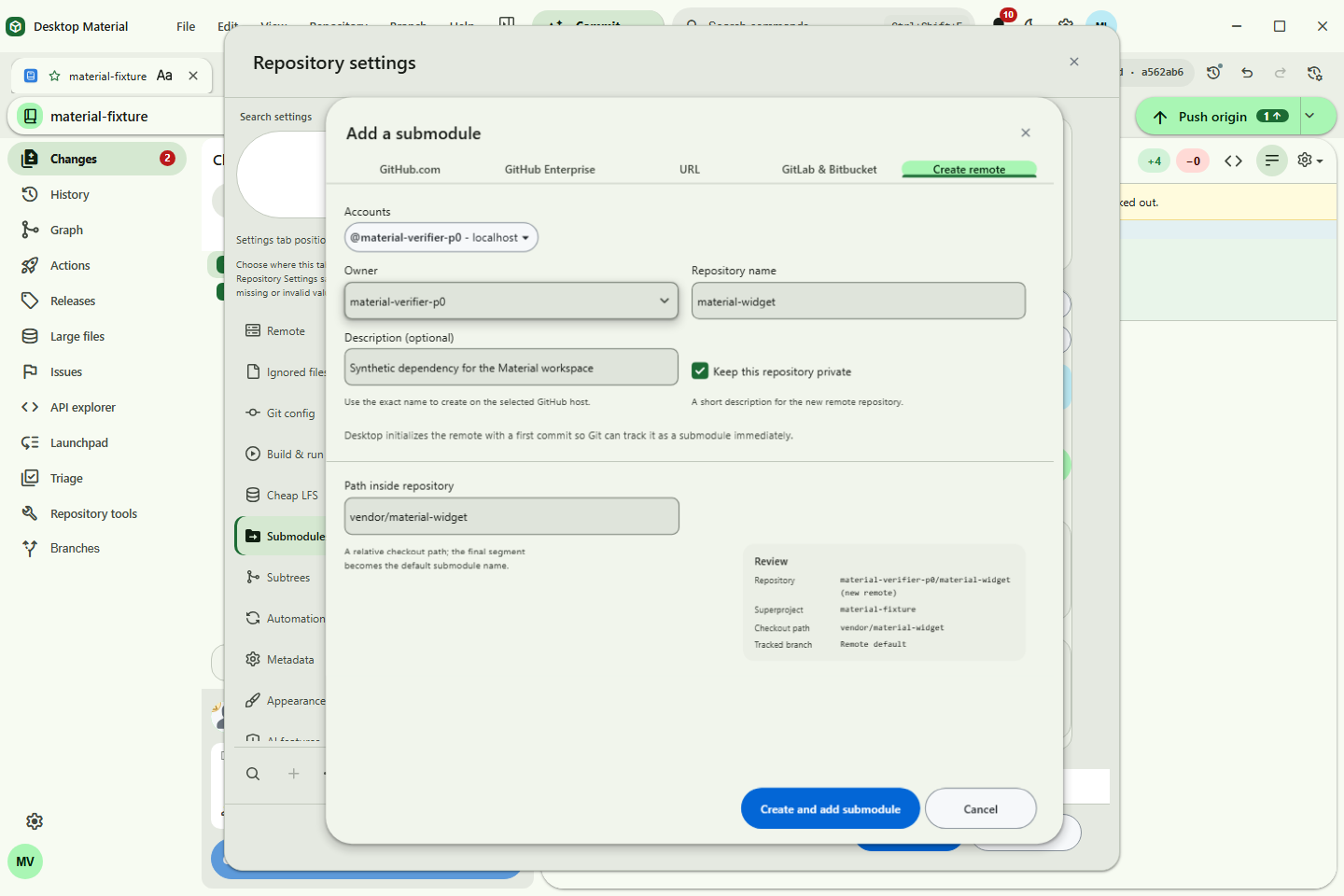
- Press Add submodule… (in the Submodule manager, or in Repository settings → Submodules).
- Pick where the box comes from — browse GitHub.com, Enterprise, GitLab, or Bitbucket with the right account, or paste any Git URL — exactly like the clone window.
- Review the folder it will live in (a safe path inside your repository) and an optional branch.
- Watch the progress. You can cancel while it runs. When it finishes, the new box appears in the managed list.
Fix a confused submodule
Submodules get confused in boring, predictable ways: a moved address, a half-finished download, contents that drifted from the bookmark. Desktop Material gives you three small helpers plus Update. In toy terms:
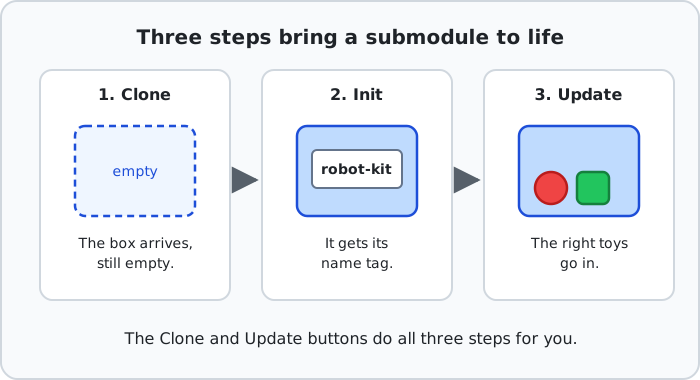
- Sync — "the address on the master list changed; copy it onto the box's own tag." Use it when the submodule still fetches from an old URL.
- Init — "put the box back on the active list." It registers the submodule in your local settings without downloading anything. (It appears in Configure when a box is not initialized.)
- Update — "make the toys match the bookmark again." It downloads whatever is missing and checks out the exact recorded version. Update all does this for every box.
- Deinit… — "pack the box away." It empties the box's folder and takes it off your active list, but keeps it on the project's master list, so Init + Update can bring it back later. It throws away un-saved changes inside the box, so Desktop Material asks you to confirm first.
A good order when something feels wrong: Sync, then Update. That fixes most confusion. Remove is the stronger move — it takes the box off the master list entirely, for everyone who clones the project later.
Submodule or subtree — which one?
Desktop Material's Nested repositories tools category has a sibling: the Subtree manager (it appears when your repository's history actually records subtrees). A subtree solves the same "share the toys" problem a different way.
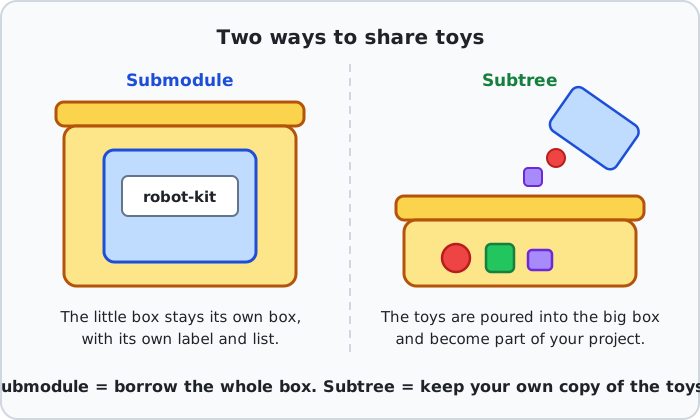
- A submodule borrows the whole box. The small box stays separate, keeps its own label and list, and your project only holds a bookmark to one exact version.
- A subtree pours the toys straight into your big box. The files become ordinary files in your project. Anyone who clones your project just gets them — no extra steps, no bookmark, no separate box.
How to choose, in one breath each:
- Pick a submodule when the shared project has its own life — its own team, its own releases — and you want to say exactly which version you use.
- Pick a subtree when you mostly want the files in your project and you would rather never explain submodules to anyone who clones it.
The Subtree manager is embedded directly under Repository settings → Subtrees and is also available from Tools → Nested repositories → Open subtree manager. It can pull fresh upstream changes into a subtree, push your local changes back, split a folder out into its own branch, or add another subtree.
See also: User Guide · Guided Feature Gallery · Regex Guide